Signing in
Sign in to Markular so you can see your rotation, hours, and competencies.
Before you start
- Your organisation has added you as a person in Markular.
- You know the work email address your organisation registered for you.
Steps
- Go to the Markular app at your organisation's sign-in address.
- Enter your work email address.
- If your organisation uses single sign-on, continue with your usual company login.
- Otherwise, Markular emails you a one-time code. Enter that code back in the app.
- If Keep me signed in appears, select it only on a private device. Markular can then keep you signed in across browser restarts for up to 30 days. The remembered session ends after 14 days without activity.
- Check that your own name appears in the top corner once the app loads.
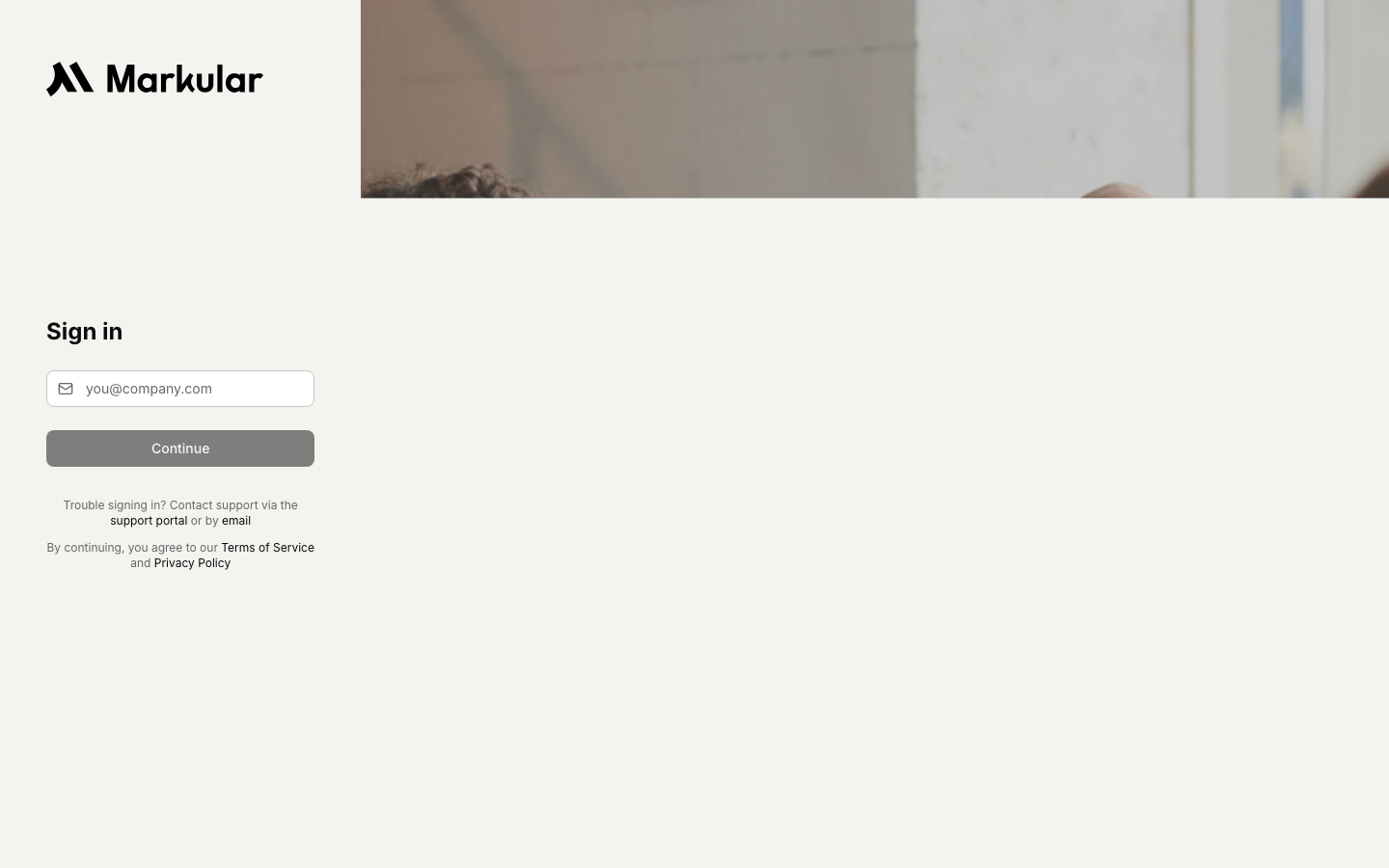
If you cannot sign in, contact an administrator in your organisation to confirm your account.
Good to know
- Keep me signed in is available for email-code login when your organisation has enabled it. It does not change your organisation's single sign-on.
- Leave it clear on a shared or public device. Your normal browser session still works, but does not persist across browser restarts.
- Signing out revokes the remembered session for that login. You will need a new code the next time you sign in.
Related articles
Was this article helpful?