Choose broad or limited People access
Choose the access method that gives each person enough information for their responsibilities without opening more of People than they need.
Organisations with an external HR system
A person's synchronized identity, email and employment status are read-only in Markular. You can still assign Markular roles, profile access and country restrictions. Correct identity details in the HR system instead. See Work with personnel managed by an external HR system.
Choose the right access method
| What the person needs | Use | What they receive |
|---|---|---|
| The directory, reports or HR administration | Access Control (Legacy) | A broad permission such as View personnel, Manage personnel or Administer personnel. |
| A small set of people and selected work information | Access Center | Directory, limited to named people and the fields in an information profile. |
| A country boundary in addition to either method | Country Restrictions | Access only within the countries assigned to the person. |
Choose Access Center for supervisors, project leads and other people who need a focused view but do not need the broad directory, reports or editing tools.
Give broad People access
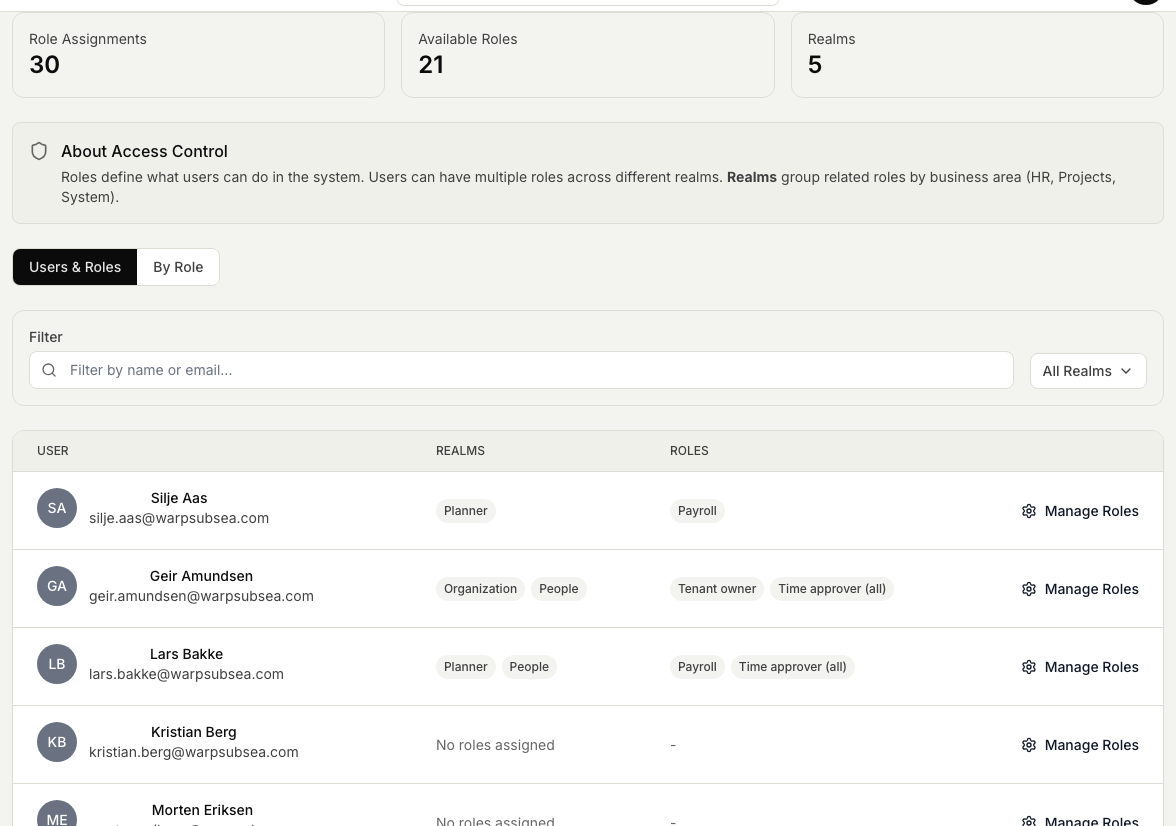
- Open People, then Settings, then Access Control (Legacy). You can also get there from Access Control (Legacy) on the Roles page in Workspace.
- Find the person in the Users & Roles list whose access you want to set.
- Select Manage Roles for that person. The available roles are grouped by area (realm): HR, Projects, and System.
- Tick the roles that give the access their job needs. Roles grant the underlying permission levels (view, manage, or administer); the People permissions reference explains what each level can do.
- Save. The new access takes effect the next time the person opens People.
- If needed, open Country Restrictions and limit the countries available to that person.
Give limited profile access
Open Workspace, then Administration, then Access Center. Follow Give someone limited access to People to choose the recipient, information, people and period.
How the methods combine
- Access is additive. A limited grant never reduces access supplied by a broad People role.
- If a person has both methods, the broad permission continues to apply. Remove the broad role first if the goal is to show a focused Directory instead.
- Multiple limited grants are combined. The person receives the people and fields allowed by every active grant.
- Country restrictions remain an outer boundary for both broad and limited access.
- Profile access can start later, expire automatically or be revoked immediately. Every grant, profile change and revocation is recorded for audit.
Related articles
Was this article helpful?