Review self-service submissions
Check profile changes, competencies and documents people submit before they become part of their record.
If your organisation uses self-service submissions, people can submit a new competency or an official document, such as a completed certificate or a renewed passport. These do not apply straight away. They arrive in a review inbox, where you decide what happens to each one. If your organisation does not use self-service, you will not see this inbox.
Before you start
- You need the Manage personnel permission. See the People permissions reference.
- Self-service submissions are an add-on, so the inbox only appears if your organisation has it turned on.
Steps
- Open the People module, then Requests to review to see the review inbox.
- Profile changes show the current and requested value together. Choose Approve to update the profile or Reject to keep the current value. Confirm the decision when Markular asks.
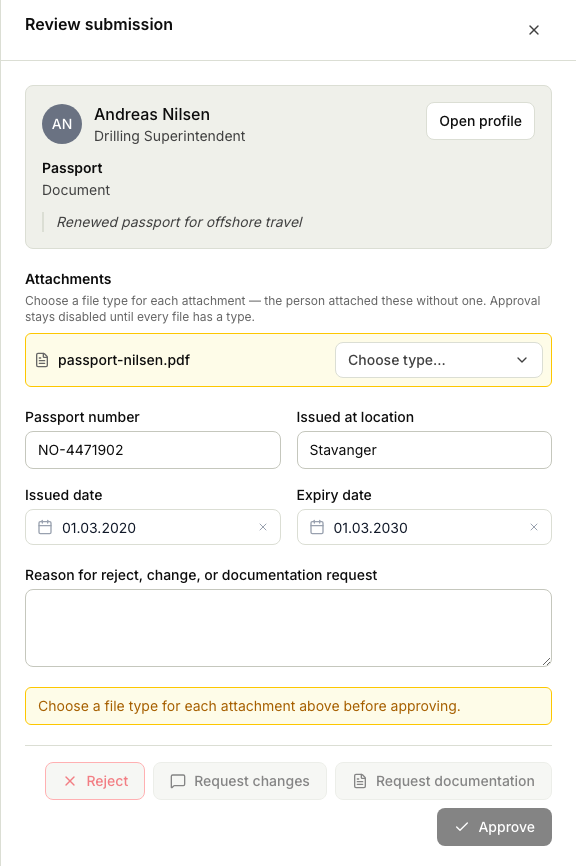
- Select a competency or document submission to see the details and files. For a personnel document, choose the correct file type before approval; Markular then files it in the person's Documents area. If the document was requested through a journey, approval also completes that activity. The employee does not need to mark it complete separately.
- Choose an outcome:
- Approve to add the competency or document to the person's record.
- Reject to decline it, so the record stays as it was.
- Request changes to send it back to the person to amend and resubmit.
- Request documentation to ask the person for a supporting file, for example proof of a new qualification, before you decide.
- Add a note where the screen invites one, so the person understands your decision, then confirm.
What happens to the files
- While the request is open, the submitter can update the attachments and reviewers with the right personnel access can inspect them through the review inbox.
- Approval creates a separate official copy on the person's record. Markular assigns responsibility for that copy to the approving reviewer, while the submitter receives read access.
- The original request and its attachments become read-only when it is approved, rejected, or cancelled. Rejected and cancelled requests do not create an official record.
- Retention of the request history follows your organisation's retention policy. To correct an approved record, use the normal People process or ask the person to submit a new request; do not alter the historical request.
Access to the person's record does not automatically give access to every protected document. See Manage access to a personnel document.
To understand the full lifecycle of a submission and what each state means, see How submission review works.
Related articles
Was this article helpful?