Add competency requirements
Define which competencies a position requires, so you can see who meets them and who does not. In Markular you do this with a job capsule: a named list of required competencies that you attach to a position. New to job capsules? Read What a job capsule is and why you need one first.
Before you start
- You need the Manage personnel permission. Viewing capsules only needs View personnel.
- You know which positions you want to set requirements for.
- The competencies you need already exist in the tree. See Structure your competency tree.
Create a job capsule
- In People, open Competencies, then Job Capsules.
- Choose Add job capsule.
- Give it a Title, such as "Crane Operator", and, if you like, a description.
- If you want a reminder to review the capsule later, set a Template expiry date. See Review dates and deleting.
- Leave Active on, and save.
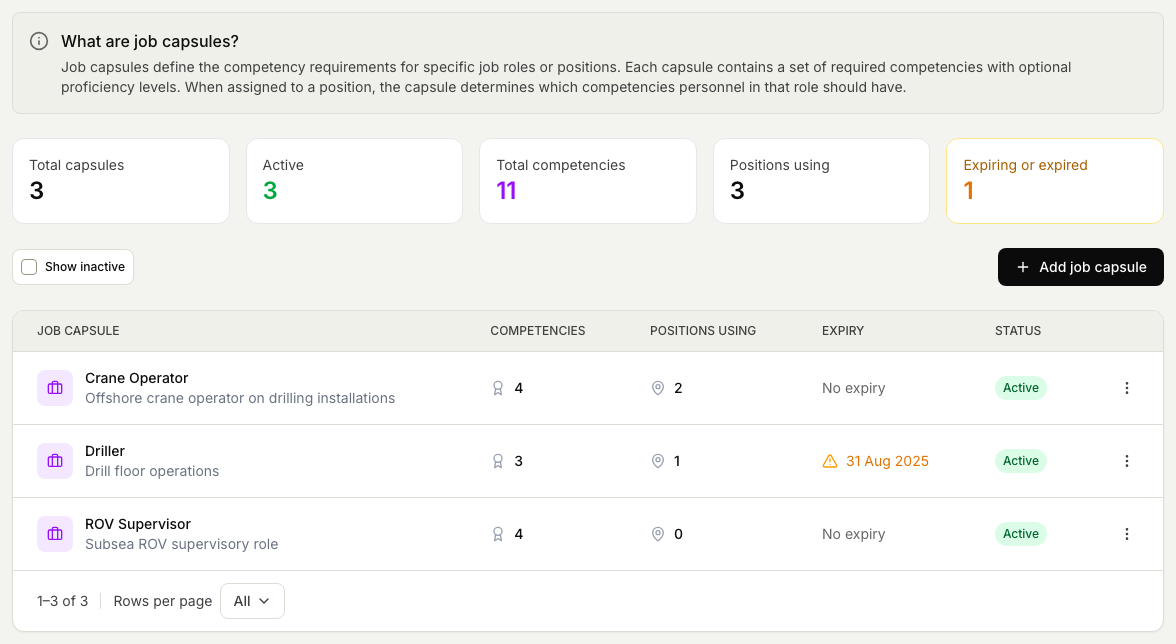
Add the required competencies
- In the Job Capsules list, select the capsule's title to open it.
- Choose Add competencies.
- Find the competencies in the tree, or search for them, and tick each one the job requires.
- Choose the button at the bottom, for example Add 3 competencies.
- To require a level, choose Set level next to a competency, pick the level, and choose Save.
A competency that shows No levels defined has no levels to choose from. The person only needs to hold it.
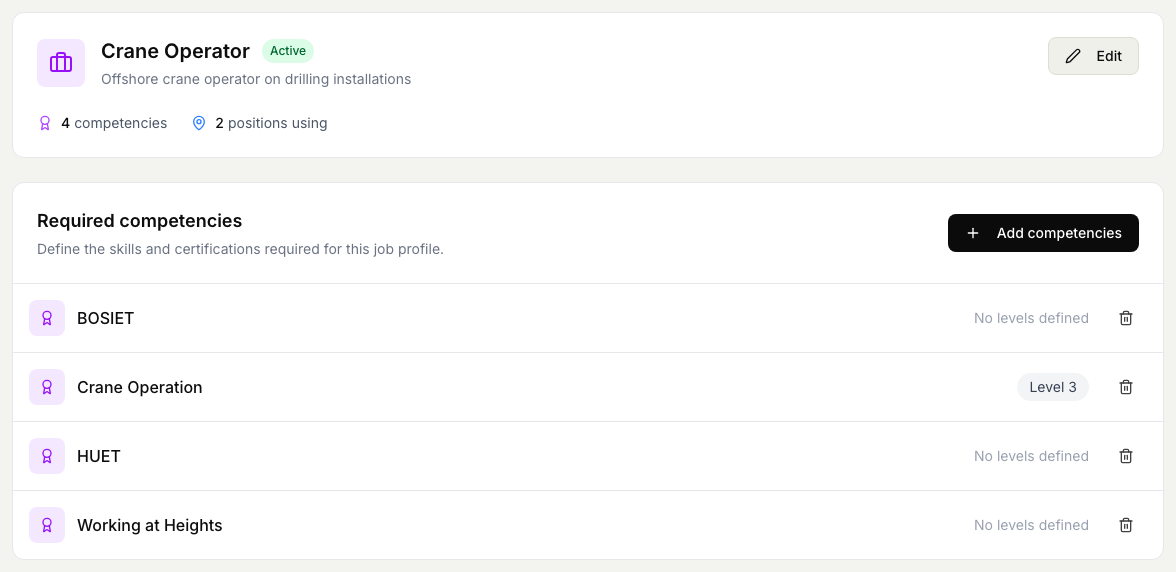
Attach the capsule to positions
You attach a capsule to one position at a time. To attach it to many positions, repeat these steps for each one.
- In People, open Positions.
- Select the position in the tree.
- In the panel on the right, choose the capsule in the Job Capsule field.
- Choose Save Changes. Whoever holds that position is now included when you run Competence gaps for this capsule at the Team level.
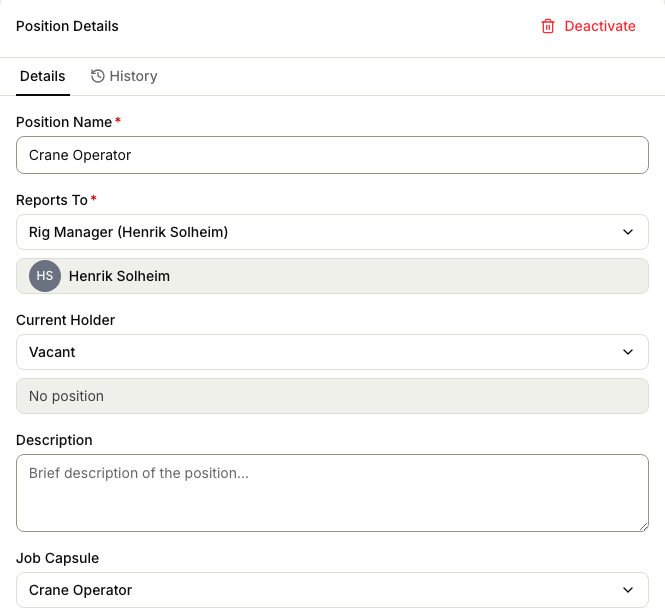
When you create a new position, you can choose its capsule in the same Job Capsule field.
To see which positions use a capsule, filter the Positions tree by Job Capsule. The Positions using column in the Job Capsules list shows how many there are.
Change a capsule
A change to a capsule applies at once to every position that uses it, and to everyone in those positions. Check the Positions using column first, so you know how many positions you are changing.
- Open the capsule from the Job Capsules list.
- To add a requirement, choose Add competencies and pick it, as above.
- To change a level, choose the level shown next to the competency, pick a new one, and choose Save.
- To remove a requirement, choose the bin icon next to the competency, then Remove.
- To change the title, description, expiry date, or status, choose Edit.
If only some of the positions should get the change, do not edit the capsule. Make a variant instead.
Make a variant of a capsule
Use Duplicate when some positions need almost the same requirements as an existing capsule, for example Crane Operator positions on one installation that need one extra course.
- In the Job Capsules list, open the actions menu on the capsule's row and choose Duplicate.
- Give the copy its own title. It starts as "Copy of" followed by the original title.
- Under Competencies to Include, untick any requirements the variant does not need.
- Choose Create Duplicate.
- Open the new capsule and add what is extra. Then attach it to the positions that need it, in place of the original.
Review dates and deleting
- The Template expiry date is a reminder to review the capsule. The Job Capsules list marks the capsule in amber when the date is less than 90 days away, and in red once it has passed. These capsules are also counted under Expiring or expired. The date does not change any requirements, and the capsule keeps working after it.
- You cannot delete a capsule while any position uses it. First choose another capsule on those positions, or set their Job Capsule field to None.
To see the gap between what a capsule requires and what each person actually holds, use Run a competence gap analysis.