Use the competency matrix
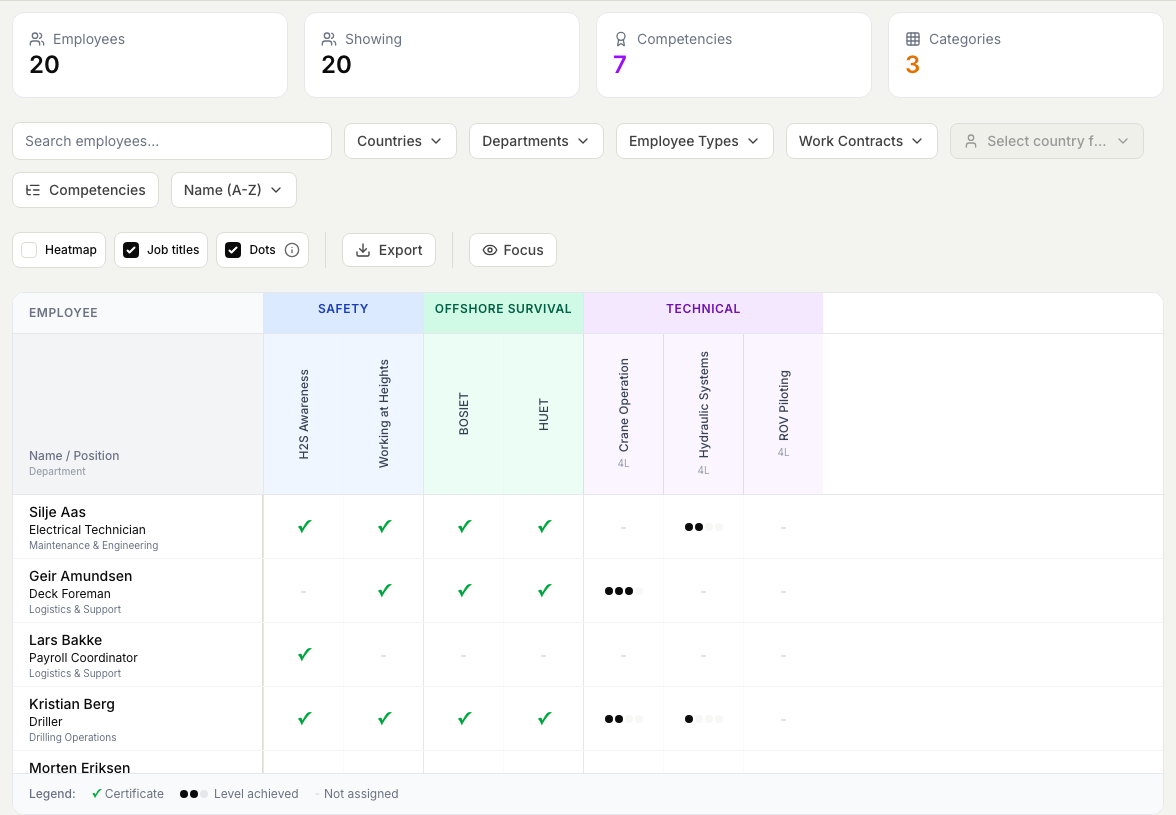
The competency matrix is a single grid that shows every person against every competency, so you can read your whole workforce's coverage in one view instead of opening each person one at a time.
Before you start
- You need the View personnel permission. See the People permissions reference.
- The matrix reflects the competencies already recorded against your people. If a competency looks missing everywhere, it may not be recorded yet rather than genuinely absent.
Read the grid
- Open the People module, then Competencies, then Competency Matrix.
- Each row is a person and each column is a competency. Columns are grouped under coloured category headers so related competencies sit together.
- Read each cell as a status:
- A green tick means the person holds that certificate.
- A row of dots (or a number such as 2/3) shows the level the person has reached, out of the levels defined for that competency.
- A dash means the competency is not recorded for that person.
- Leave Heatmap on to shade cells by how close each person is to the top level, so weak spots stand out. Use Job titles to show each person's position under their name, and Dots to switch between dots and numbers for levels.
Narrow the view
The full grid can be large, so filter it down to the group you care about.
- Use the filter row above the grid to narrow by Country, Department, Employee Type, or Work Contract. You can pick specific people or specific competencies as well.
- Type in the Search box to jump to a person by name, personnel number, or department.
- Sort the rows by name with the Sort control.
- The summary cards at the top always show how many people and competencies you are looking at, so you can confirm the filter did what you expected.
Spot the gaps
With the heatmap on, scan for the red and orange cells and the dashes. Those are the people who do not yet hold, or have not yet reached the required level in, a competency their role expects. A column that is mostly empty tells you a competency is thin across the whole group you filtered to.
To understand how "required" is decided and how it relates to what people hold, see How competency requirements, holdings, and gaps fit together.
Export it
Select Export to download the current view as a spreadsheet. The export respects your filters and the heatmap setting, so you can hand the exact view you are looking at to someone who does not use Markular, or keep it as an audit record.
