Manage positions
This guide shows you how to keep your positions up to date: adding a new one, editing the details of an existing one, and taking a position out of use or bringing it back. A position is the role someone holds, such as ROV Pilot or Deck Foreman, and it also defines the competencies expected of anyone who holds it.
Positions and reporting lines are read-only when they are synchronized from your HR system. Make structural changes there, then let them synchronize to Markular. You can still use this page to inspect the structure. See Work with personnel managed by an external HR system.
Before you start
- You need the Manage personnel permission to add, edit, deactivate, or reactivate a position. With View personnel you can open the page and read the structure, but not change it.
- It helps to know where the new or changed position sits in the reporting line, because positions are arranged as a hierarchy.
Steps
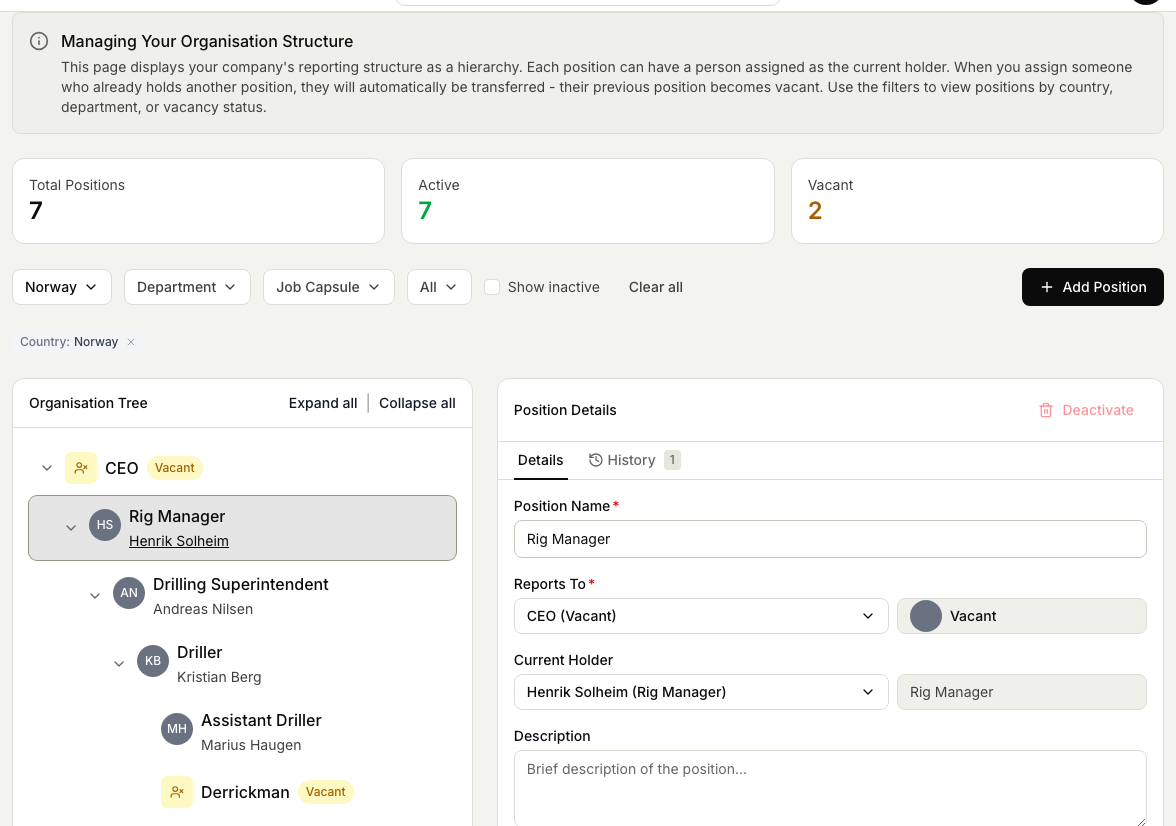
- In People, open Positions. You will see your organisation as a tree on the left, with counts for total, active, and vacant positions above it.
- Narrow the tree if you need to, using the Country, Department, Job Capsule, and Vacancy filters, or tick Show inactive to include positions that are no longer in use.
- To add a position, select the position it should report to, then choose Add Position. Fill in the details, including its place in the structure and the competencies expected of the role, and save. A new position starts out vacant until you assign someone.
- To edit a position, select it in the tree. Change its details in the panel on the right, then save. Your changes apply everywhere the position is used.
- To take a position out of use, select it and choose to remove it. If the position has assignment history, Markular deactivates it and keeps that history rather than deleting it. A position that has never been used and has no people reporting to it can be deleted outright.
- To bring a deactivated position back, tick Show inactive, select the position, and choose Reactivate.
Note that a position defines the competencies expected of it. Setting these correctly is what lets the rest of Markular tell you when someone is scheduled into a role they are not yet qualified for. To understand how this fits together, see How positions and the org structure work.