Add a new person
Create a new person in the directory so the rest of Markular can work with them.
Organisations with an external HR system
If People shows Managed by external HR system, create the person in that HR system instead. Manual person creation is unavailable in Markular so the synchronized record remains authoritative. See Work with personnel managed by an external HR system.
Before you start
- You need the Manage personnel permission. Anyone with View personnel can open the directory, but only Manage can add a person. See the People permissions reference.
- Have the person's basic details ready: name, work email, and the position they will hold.
Steps
- Open the People module, then Directory.
- Select Add person.
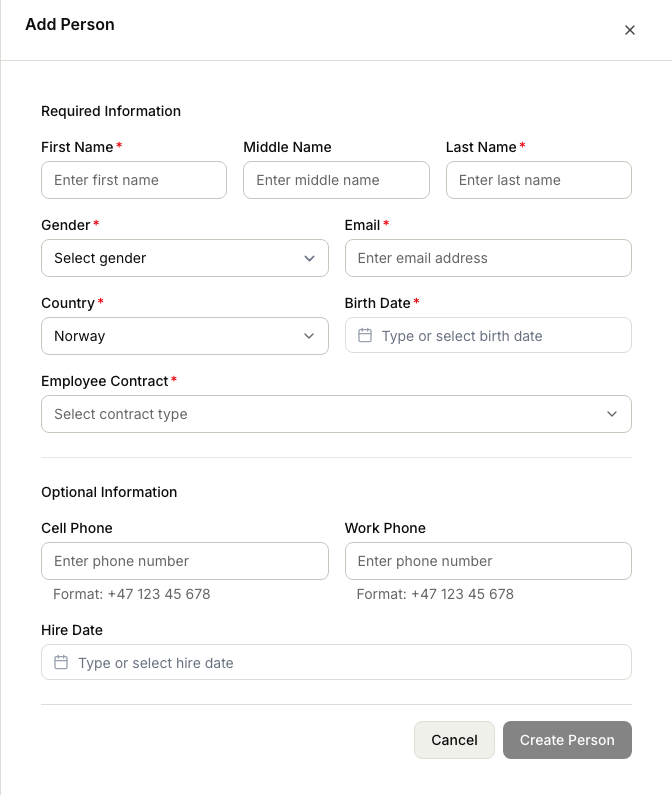
- Enter the person's details: name and contact information, and record how the person is engaged, for example whether they are a direct employee or hired through an agency. This keeps your directory, filters, and reports able to tell the two apart.
- Save. The person now appears in the directory and can hold competencies, and be scheduled or register hours where your organisation uses those modules.
- Assign the position they will hold from their profile, which opens once you save. Position is set on the profile, not on the add form, and it decides which competencies the person is expected to hold. See How positions and the org structure work.
Related articles
Was this article helpful?