Edit a person's details
Keep a person's record up to date by editing their profile: contact details, the position they hold, their personnel category, and more.
Organisations with an external HR system
Fields marked as managed by your HR system are read-only in Markular. Correct those values in the HR system and let them synchronize. Competencies, documents and other fields that are not locked can still be managed here. See Work with personnel managed by an external HR system.
Before you start
- You need the Manage personnel permission. Anyone with View personnel can open a profile, but only Manage can change it. See the People permissions reference.
- Know which detail you need to change, so you edit the right section.
Steps
- Open the People module, then Directory, and find the person. See Find and filter personnel.
- Select the person's name to open their profile.
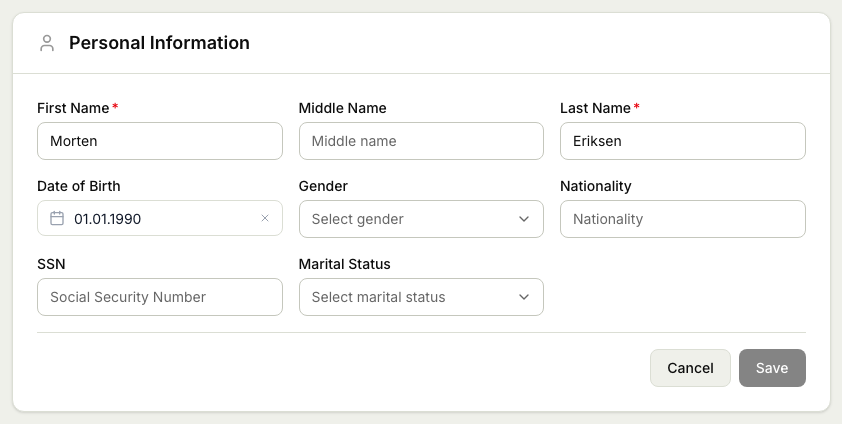
- Choose where the detail lives. Most details are on Intro, grouped into sections such as Personal Information, Contact Information, Addresses, and Employment. Competencies, documents, and issued documents each have their own tab.
- Select the edit control on the section you want to change. Each section is edited on its own, so you only touch what you need.
- Update the fields. For example, use Contact for email and phone, or Employment to set the person's status.
- Save the section. Your change applies straight away.
- To change the position the person holds, use Assign position at the top of the profile instead. See How positions and the org structure work.
Dates, numbers and translated field labels follow your saved language and regional preferences. Names and other information entered by your organisation are shown exactly as recorded.
Related articles
Was this article helpful?