Find and filter personnel
Use the directory to find the people you need, narrow a large list down to the right group, and take that list out as a spreadsheet.
Before you start
- You need the View personnel permission. See the People permissions reference.
- The directory opens on your own working country by default, so if you expect someone and cannot see them, check the country filter first.
Steps
- Open the People module, then Directory.
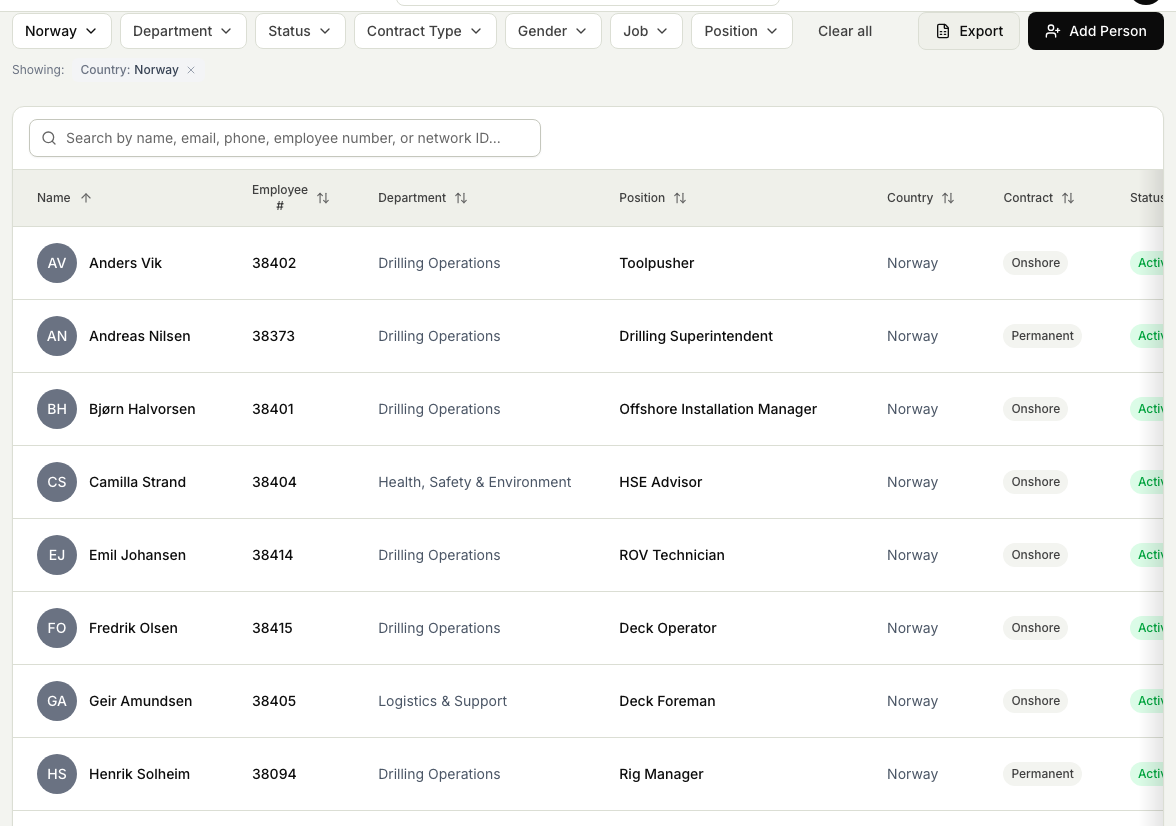
- Filter the list using the bar above the table. You can narrow by Country, Department, Status, Contract Type, Gender, Job, and Position. Country takes one value at a time; the others let you pick several.
- To find one person quickly, type into the search box. It matches on name, email, phone, employee number, and network ID.
- Sort the list by selecting a column heading, such as Name, Department, or Position. Select it again to reverse the order.
- Review the active filters shown as chips below the bar. Remove one by selecting its cross, or select Clear all to start over.
- When the list shows the group you want, select Export to download it as an Excel spreadsheet. The export includes everyone matching your current filters, not just the page on screen.
Related articles
Was this article helpful?