Import personnel in bulk
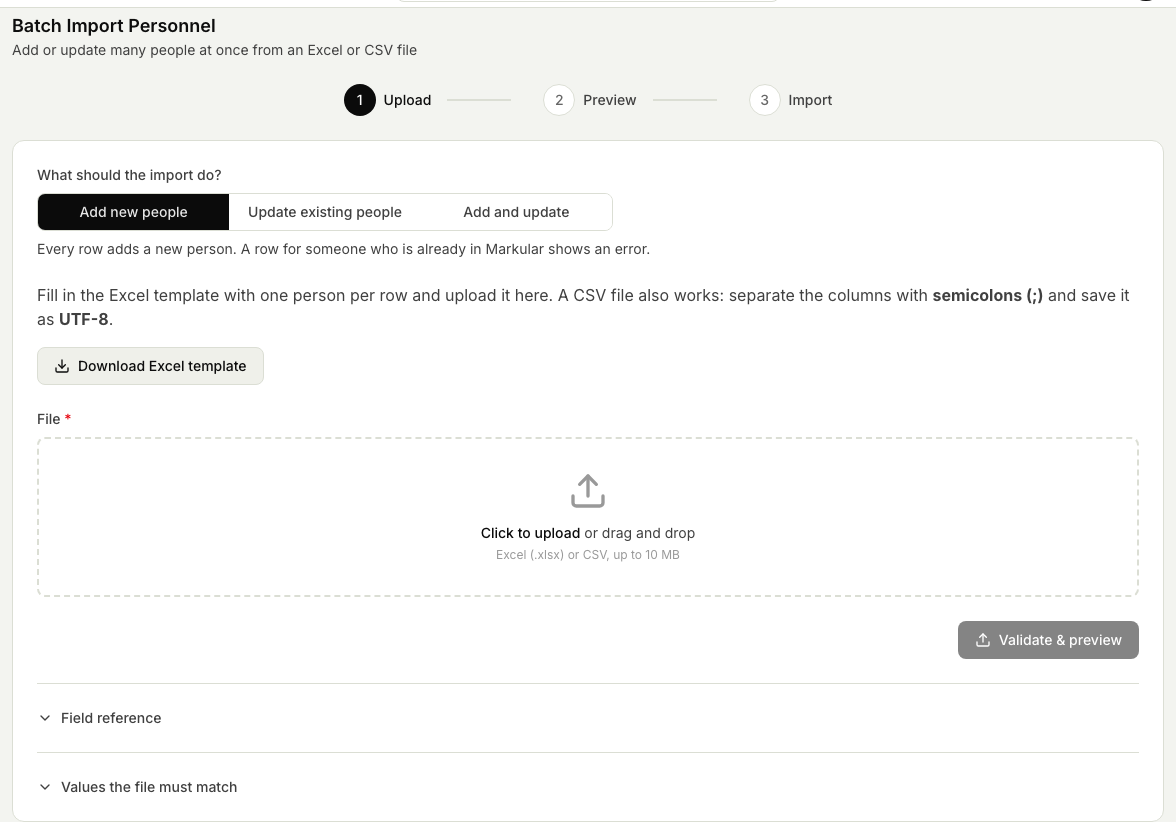
Bring in a whole list of people from a file at once, rather than adding a person one at a time. This is the quicker route when you are onboarding a full crew or moving records over from another system. To change details for people who are already in Markular, see Update personnel in bulk.
Batch import is unavailable when personnel is synchronized from an external HR system. Add and update the people in that system instead. See Work with personnel managed by an external HR system.
Before you start
- You need the Administer personnel permission. See the People permissions reference.
- Start with Download Excel template in Markular. The column names are part of the import format, so do not translate or rename them.
- Have the details you want to bring in ready, with one person per row. Values such as country, employee status, contract type and schedule must match an available value in Markular.
- Importing many people at once is best for setup and onboarding. For a single new starter, adding a person by hand is simpler, and onboarding a new person walks through the full first-day setup.
What the file can contain
Select Download Excel template on the Upload step. You get an Excel workbook with every column Markular accepts, ready to fill in. Add one person per row on the first sheet, People, starting in row 2. Click any cell to see what the column needs and an example. The second sheet, Instructions, lists every column, whether it is required, and an example.
The template helps you get the details right:
- Birth date and hire date become real dates, shown as year-month-day. Type them as 1985-01-15 or the way you usually write dates.
- ID and phone columns keep leading zeros.
- Country, employee status, contract type, work schedule and gender have drop-down lists with the values Markular knows. The arrow shows next to the cell you select. If you type something that is not on the list, Excel warns you but lets you keep it, and the preview checks it.
- UPN is the email address the person uses to sign in to Markular, the same field as UPN on the person profile.
- Competencies are not imported. Add them on each person's profile after the import.
Markular reads the sheet called People, or the first visible sheet if there is none, and expects the column names in row 1. Blank rows are skipped, and so are rows you have hidden or filtered out. The preview tells you how many hidden rows were left out. Row numbers in the preview match the row numbers in Excel. You can also upload a CSV file. Separate the columns with semicolons (;) and save it as UTF-8. Older .xls files are not accepted, so save them as .xlsx first.
The required columns come first in the template and have a blue column name: name, email, gender, country and employee status. The contract type is required too unless your organisation has a Permanent contract type, which a blank contract type then gives the person. Everything else is optional and can be left blank, so you can get people in with the least information and add the rest later. A person without a birth date shows "Not set" on their profile until someone adds it.
If your people travel through Norwegian heliports, you can also include each person's DaWinci ID in the file. It must be unique, at most 10 characters, and it appears in the Additional section of the person's profile after import. Rows that reuse an ID already registered on another person, or that repeat an ID within the file, are flagged in the preview.
Steps
- Open the People module, then Settings, then Batch Import Personnel.
- Under What should the import do?, keep Add new people selected.
- Upload your Excel (.xlsx) or CSV file under File and select Validate & preview. Use the column names from the template. Common alternatives, such as
first_nameforFirstName, work too. - Review the preview. Select a row to see what needs attention. When a value must match something already set up in Markular, select Available values to look it up.
- Fix anything the check flags in your file and upload it again, so you do not bring in incomplete or duplicate records. Rows with errors are skipped.
- Select the import button, for example Add 3 people, and keep the page open until the import is finished. The new people appear in the directory, ready to be given positions and worked with. To see what happened to each row, select Download results.
The wizard follows your Markular display language. The column names in the file and the values your company has set up stay the same, so the same file works whether you use Markular in English or Norwegian.