Share a person's documents
This shows you how to send several of a person's documents at once, for example the certificates a customer needs before a crew member travels to a vessel or rig. You pick the files, and your computer or phone hands them over to the app you choose, usually your email app.
Sharing uses the share menu built into your device. That gives you your own apps in one click, but it also means the device decides what is possible. The sections Which devices and browsers work and What sharing cannot do tell you what to expect before you start.
Document sharing must be turned on for your organisation. If you do not see a checkbox next to each document, it is not enabled yet. Ask your Markular administrator.
Before you start
- You need the View personnel permission. See the People permissions reference.
- You need an app that can receive files installed on your computer or phone, such as the new Outlook on Windows, Mail on a Mac or iPhone, Outlook or Gmail on a phone, or Teams. Email that you read in a browser cannot receive shared files. See What sharing cannot do.
- Your browser must be able to share files. Check the table below. If your browser cannot share, the panel says so, and you can still download the selected files as one zip file. See Download instead of sharing.
Steps
- Open the People module, then Directory, and open the person's record. See Edit a person's details.
- Go to the Documents section of the record.
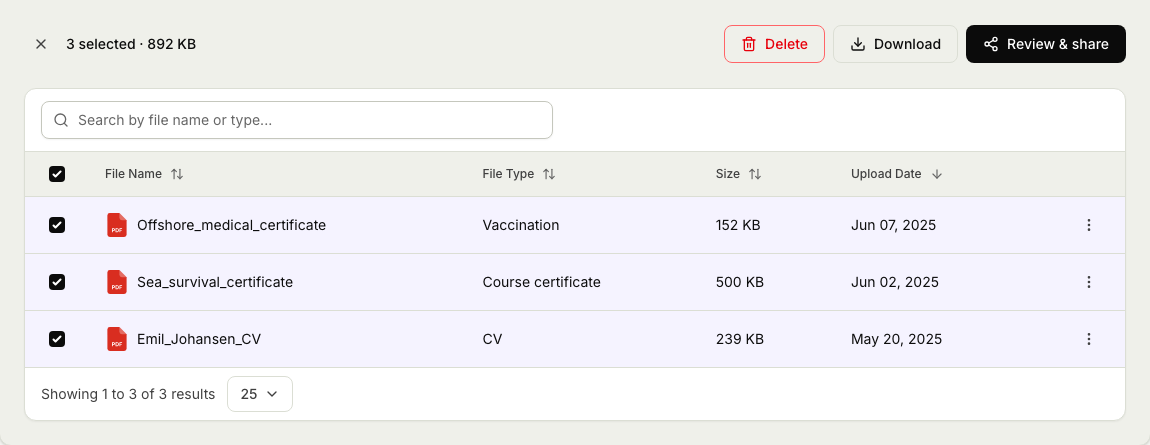
- Tick the box next to each file you want to send. Tick the box in the table header to select every file on the current page. Your selection is kept when you move between pages or change the sort order.
- Select Review & share in the bar above the list.
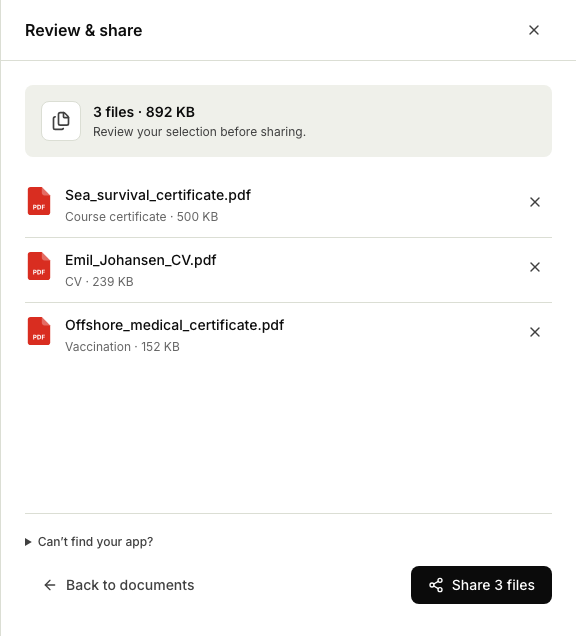
- Check the list of files. Remove a file with the X next to it, or use Select remaining to add the other attachments of a competency. The button shows the progress while the files are fetched, then reads Share with the number of files.
- Select Share and pick your email app or Teams in your device's share menu. A new message opens with the files attached.
- Check that every attachment is there before you send.
Download instead of sharing
If sharing is not available on your device, or you would rather attach the files yourself, download them as one file instead.
- Tick the files you want, as in step 3 above.
- Select Download in the bar above the list.
- Your browser saves one zip file named after the person, for example
Markular documents - Ola Normann - 2026-09-15.zip, with every selected file inside.
Download works in every browser and with every file type, and there is no limit of 10 files. Linked files count too. You need the View personnel permission, and no setting has to be turned on.
What you can share
- Files stored on the person's record, filed under your organisation's document types. See Attach documents to a person.
- Files attached to a competency or an issued document, such as a scanned certificate. Turn on Show linked files above the list to see them. See Personal files vs issued documents.
You can share files from one person at a time.
Which devices and browsers work
| Your setup | Can share files? | Good to know |
|---|---|---|
| Windows with Microsoft Edge or Google Chrome | Yes | The Windows share window only lists apps installed from the Microsoft Store, such as the new Outlook. The classic Outlook desktop app does not appear. Up to 10 files per share. PDF and image files only. |
| Mac with Safari, Chrome or Edge | Yes | Needs Safari 15, Chrome 128 or newer. The share menu offers Mail, Messages, AirDrop and other apps on your Mac. In Chrome and Edge, up to 10 files per share, PDF and image files only. |
| iPhone or iPad with Safari | Yes | Needs iOS 15 or newer. Choose Mail, Outlook or any other app that accepts files. |
| Android phone or tablet with Chrome | Yes | Choose Gmail, Outlook or any other app that accepts files. Up to 10 files per share. PDF and image files only. |
| Firefox on any device | No | Firefox cannot share files. Use Download instead. |
| Linux with Chrome or Edge | No | Use Download instead. |
When you open Review & share, the panel tells you if sharing is unavailable in your browser.
What to expect
- Nothing is sent for you. The files are handed to the app you choose, such as your email app or Teams, and that is where you add the recipients and the message. You can still change your mind before sending.
- The recipient gets copies of the files, with their original names and content. There is no link back to the person's record, and the recipient does not need a login.
- Nothing changes on the person's record. Sharing does not move, edit or delete anything.
- No record is kept of what was shared or who received it. If you need one, keep the sent email.
- You can cancel and try again. If you close the share menu, the files stay ready and you can share again straight away. Closing the panel keeps your selection too. Searching the list or opening another person clears the selection.
What sharing cannot do
Markular hands the files to the share menu that Chrome, Edge, Safari or your phone provides. That menu decides which apps appear and which files it accepts, and no setting in Markular can change it.
We have checked every limit below against the browser makers' own documentation and update this page when they change. Each limit comes with a workaround.
- Send Word, Excel or PowerPoint files from Chrome or Edge. Chrome and Edge only share PDF files, images such as JPG and PNG, and plain text files. If your selection includes a Word or Excel file, the browser refuses the whole share and the panel shows "Could not share these documents". Remove those files from the selection, or select them and choose Download, then attach the zip file by hand.
- Share more than 10 files at a time in Chrome or Edge. You can select up to 100 files and about 50 MB, but Chrome and Edge stop at 10 files per share and show the same "Could not share these documents" message. In those browsers, share 10 files or fewer at a time.
- Attach files in webmail. Email that you read in a browser, such as Outlook on the web or Gmail, does not appear in the share menu on a computer. Select the files, choose Download, and attach the zip file the usual way.
- Attach files with Copy and paste. The Windows 11 share window and the Mac share menu can offer a Copy option. Pasting the copied files into an email does not work reliably, and it depends on your device and your email app, so do not count on it. Choose your email app directly in the share menu instead, or use Download and attach the zip file.
- Use the classic Outlook desktop app on Windows. Only apps from the Microsoft Store appear in the Windows share window, and the classic Outlook app is not one of them. Use the new Outlook, or use Download and attach the zip file.
- Add files to an email you already have open. Sharing always starts a new message. To reply to an existing email, use Download and attach the zip file to your reply.
- Choose which apps appear. The share menu comes from your device. If your email app is missing, check that it is installed and set as your default email app.
On a Mac, Apple explains how the share menu decides what it offers in Use the Share menu on Mac.