Update personnel in bulk
Change details for many people at once from a file, instead of editing each person's record. This works with a list from your payroll or HR system, and with a file you download from Markular.
Batch import, including updates, is unavailable when personnel is synchronized from an external HR system. Update the people in that system instead. See Work with personnel managed by an external HR system.
Before you start
- You need the Administer personnel permission. See the People permissions reference.
- To change people you already have in Markular, the easiest start is to download them. See Download people to update.
- To add people who are not in Markular yet, see Import personnel in bulk.
How a row finds the right person
Each row is matched to one person already in Markular. Markular tries these columns in order and uses the first one that finds exactly one person:
- MarkularId, the person's own number in Markular. It is filled in when you download people.
- EmployeeId, the employee ID from your payroll or HR system.
- Email.
If the columns in a row point to different people, or an email belongs to more than one person, the row is flagged and nothing changes for it. Add the Markular ID to choose the right person.
If you choose Add new people for a file with people who are already in Markular, the preview tells you and offers Check again as Add and update.
What changes and what stays
- Empty cells keep what is there. Only the cells you fill in change anything.
- Status and contract type change from today. The earlier status or contract type stays in the person's history.
- Competencies are not part of the update. Add or change them on the person's profile.
- Work schedules stay as they are. Change them in Planner.
- A new UPN changes how the person signs in. The preview warns you so you can check it first.
Download people to update
- Open the People module, then Settings, then Batch Import Personnel.
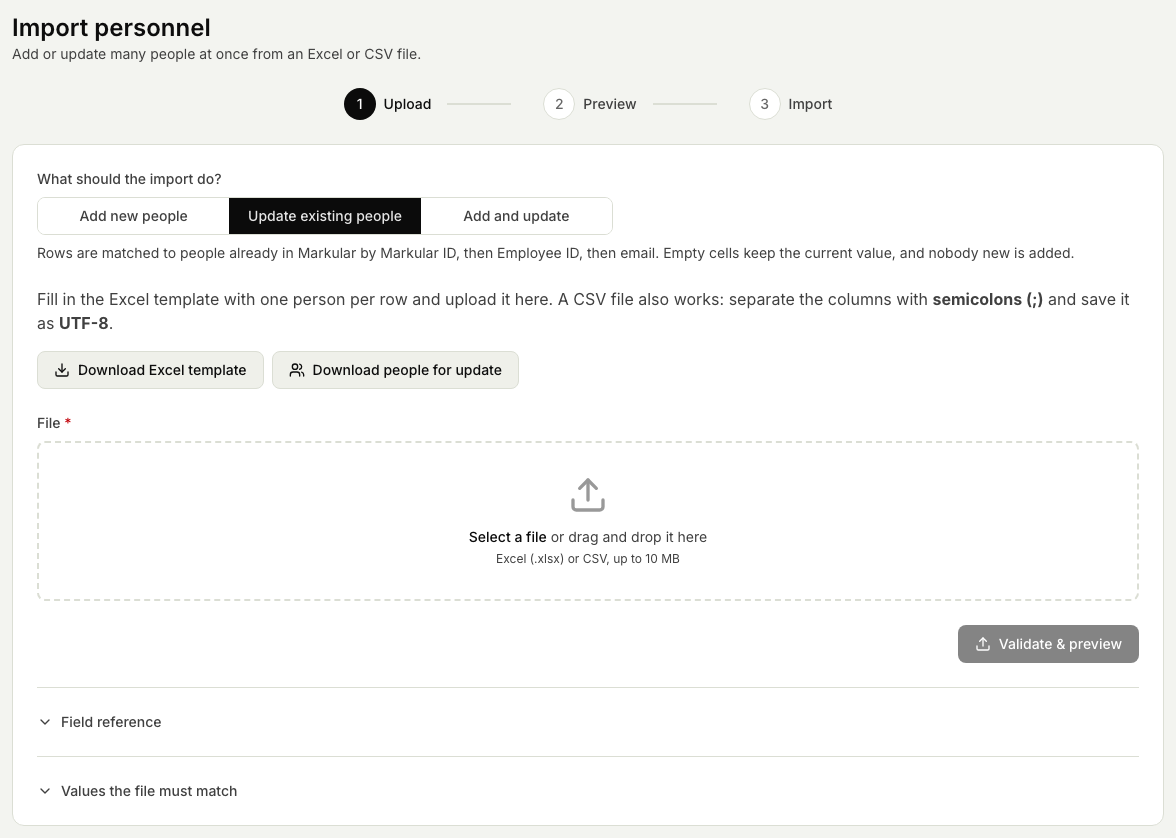
- Under What should the import do?, select Update existing people.
- Select Download people for update, choose which statuses to include, and select Download. Active is chosen to start with. You get an Excel workbook laid out like the template, with each person's MarkularId filled in.
- Open the file in Excel, change what you need, and leave the rest as it is. Save it as an Excel workbook (.xlsx). A CSV file also works if you separate the columns with semicolons (;) and save it as UTF-8.
Steps
- On Batch Import Personnel, select Update existing people. To add new people from the same file as well, select Add and update instead.
- Upload your file and select Validate & preview.
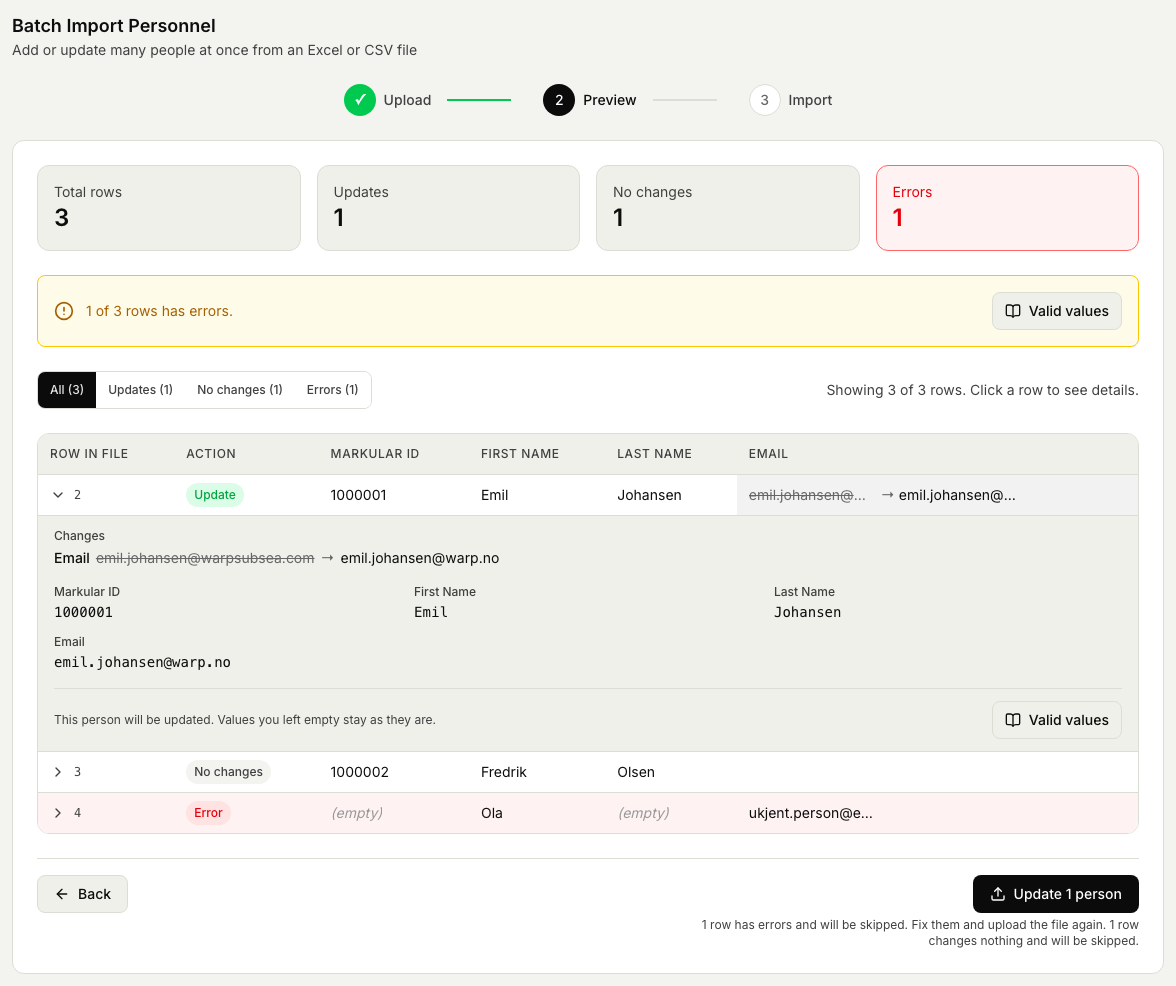
- Review the preview. Each row shows what will happen: Update, No changes, New or Error. A changed cell shows the current value struck through next to the new one. Select a row to see all of its changes.
- Select the import button, for example Update 1 person. Rows with errors and rows without changes are skipped. Keep the page open until the import is finished.
- Select Download results for a file that shows what happened to each row.