Review personnel documents
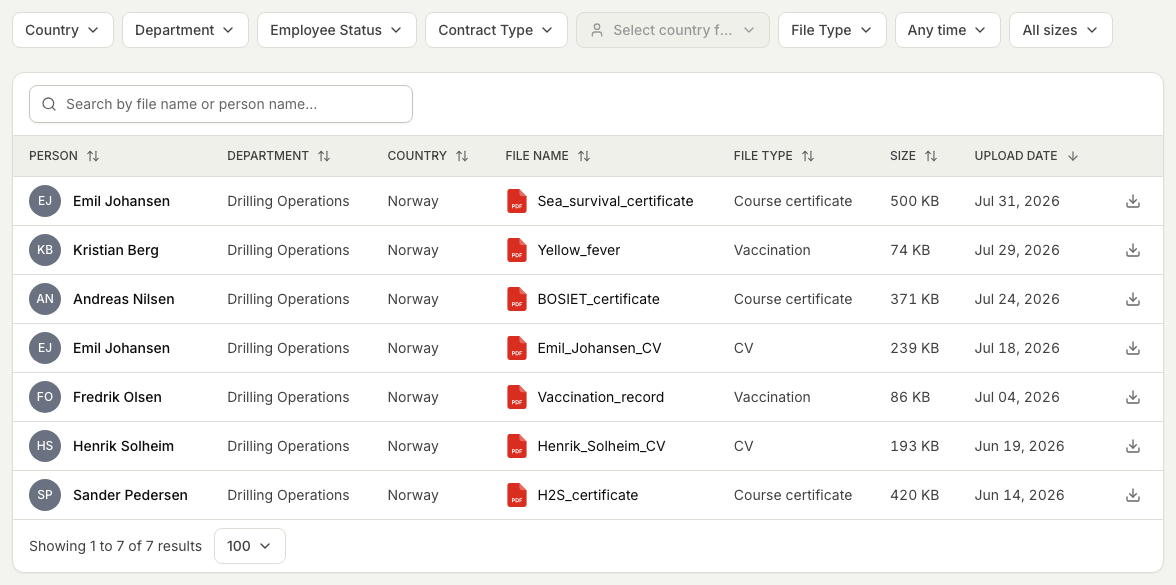
Document overview gathers uploaded personnel documents into one table. It helps you find a document, understand who it belongs to and open it without moving through each personnel record.
Before you start
- You need either broad View personnel access or a focused People access role containing Personnel documents. A focused role only considers documents for the people selected in that role.
- Each managed document also has its own access list. Being allowed to see the person's record does not by itself let you open every document about them.
- Document overview is read-only, so nothing you do here changes a person's record.
- It helps to know the difference between official issued documents and general files before you read the report. See Official documents vs general files.
Steps
- In People, open Insights, then Document overview. Each row represents one uploaded document that passes both your People scope and the document's own access list.
- Use Regarding or File type to focus the list. Country, department and employment status appear only when those fields are included in your access role. Open More filters for the remaining available filters.
- Search by document title or person. The previous results remain in place while the table refreshes.
- Select Columns to show or hide optional context. Fields outside your role cannot be selected.
- Select a document row to preview it. Select the person's name to open the profile available to you.
- Download the file from the preview when you need a local copy.
If a document is missing
A document is omitted from the list, search results and counts when you can see the person but have not been given access to that document. Ask its owner or someone with Can manage access to share it with you or with a relevant dynamic access role. Older documents labelled Legacy continue to follow the organisation's previous People rules while their access is migrated.
Related articles
Was this article helpful?