Run the personnel report
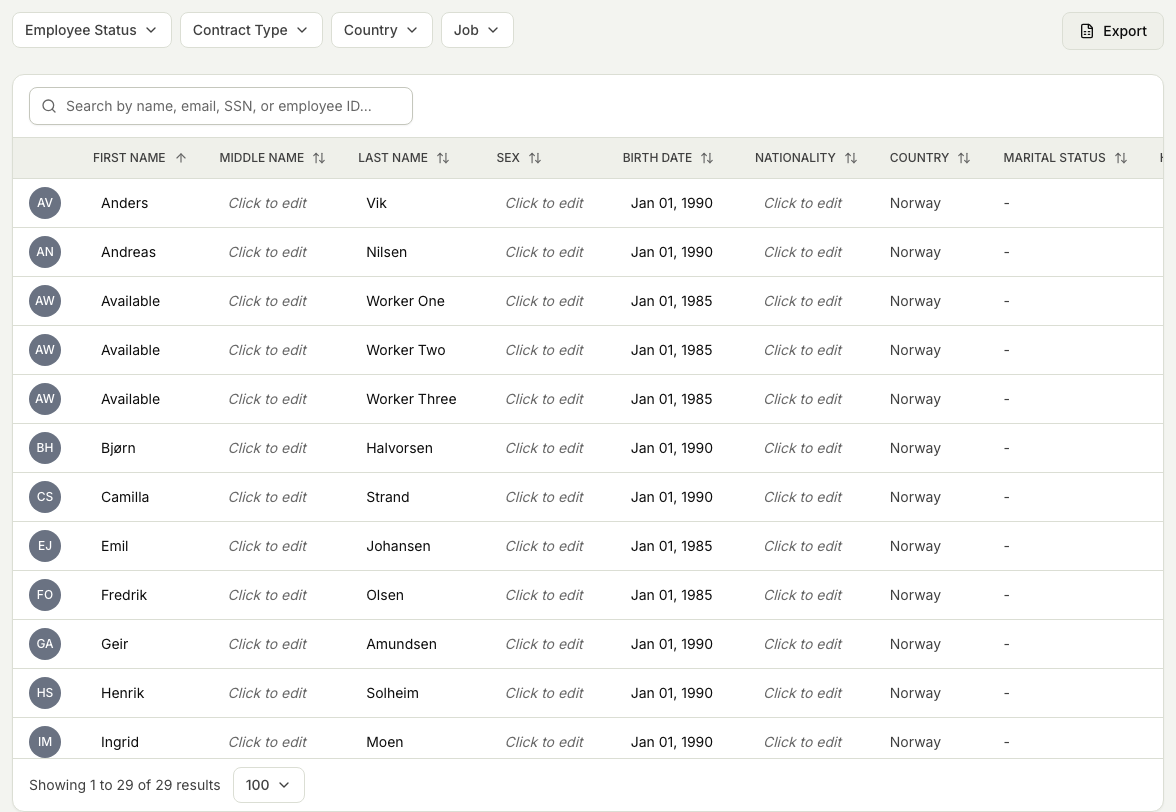
The personnel report brings your workforce records together in one wide table, so you can review details such as contact information, identifiers, and kit sizes across everyone at once. This guide shows you how to open it, narrow it to the people you care about, and edit values without leaving the report.
info
The personnel report is available only if your organisation has the personnel report feature switched on. If you do not see People data under Insights, it is not enabled for your tenant.
Organisations with an external HR system
The report remains available for review and export, but synchronized personnel data cannot be edited here. Make corrections in the HR system and let them synchronize to Markular. See Work with personnel managed by an external HR system.
Before you start
- You need the View personnel permission to open and read the report.
- To edit values in the report, you also need Manage personnel. With view only, or when external HR master data is enabled, the table is read-only.
Steps
- In People, open Insights, then People data. The table loads automatically and lists your personnel.
- Narrow the list using the filters at the top: Employee Status, Contract Type, Country, and Job.
- Use the search box to find people by name, email, social security number, or employee ID. The table updates as you type.
- Sort by any sortable column by clicking its heading. Click again to reverse the order, and a third time to return to the default.
- The name and photo columns stay fixed on the left as you scroll right, so you never lose track of whose row you are on.
- Change how many people show per page, and step through the pages, using the controls at the bottom of the table.
- To correct a value, select the cell and type the new value. Changed cells are highlighted, and a running count shows how many people you have modified.
- Choose Save Changes to apply your edits, or Discard to undo them all before saving.
Related articles
Was this article helpful?