Add a staffing need to a job
A demand is a job's need for a number of people in one role over part of its dates. Most jobs need several, one per role. This article shows how to add one and adjust its headcount. You need the Plan rotations permission.
Add a demand
- Open the job and go to its Demands.
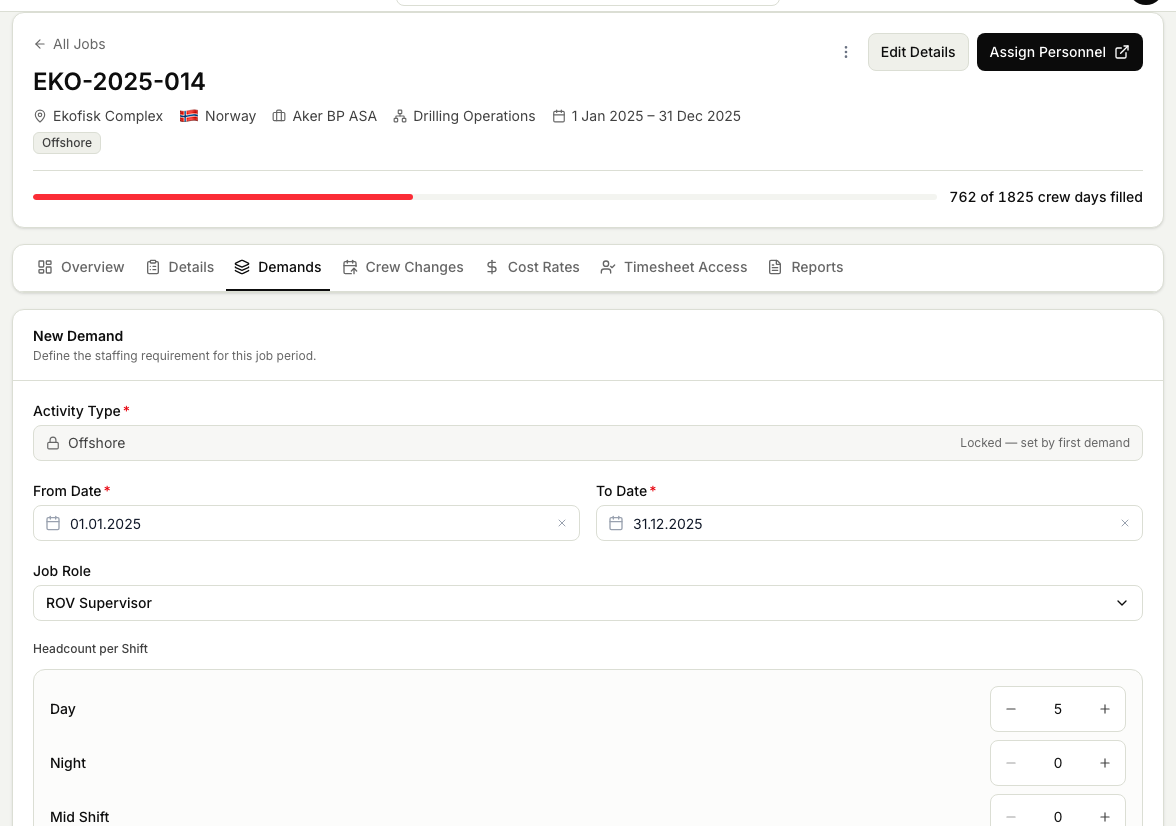
- Choose to add a new demand.
- Set the details:
- Activity type. If the job already has demands, this is locked to the job's pattern and shown for reference. You only pick it when it is the job's very first demand.
- From and to dates. The period the need runs for. These must stay inside the job's own dates.
- Job role. The role you need filled. This is optional, and hidden entirely when the job is set up to have its roles assigned automatically.
- Headcount per shift. How many people each shift needs. Use the plus and minus controls, or type a number. If the activity type has no shift pattern, the demand is still valid and has no per-shift numbers.
- Create the demand. Planner opens it so you can review or adjust it.
Adjust the headcount later
Plans change, so you can revise a demand after it exists:
- Open the job's Demands and select the demand you want to change.
- In the Shifts section, raise or lower the required number for each shift.
- In the same view you can also shift the demand's dates or change its role, as long as the dates stay inside the job.
- Save your changes.
Delete a demand
If a demand is no longer needed, delete it from the job's Overview or Demands:
- Point at the demand's card, or move to it with the Tab key, and choose the bin icon, Delete demand. On a phone the icons are always shown. You can also choose the pencil and use Delete demand at the bottom of the form.
- Read what the dialog says before you confirm:
- Nobody is planned on it. Confirm with Delete demand.
- People are planned on it. The dialog lists them. Unassign N and delete removes their assignments on this demand and then deletes it.
- Someone has approved hours on it. The demand can't be deleted. Reopen the timesheet in Timekeeper first, or keep the demand.
Deleting a demand can't be undone.
What happens next
Adding or raising a demand widens the gap the schedule needs to fill. Adjusting the headcount is how you keep the plan honest as the job firms up. Head to the schedule board to assign people against each demand. See Assign a person to a demand.
Related articles
Was this article helpful?