Export a crew-change manifest
A long job keeps running while its people rotate on and off, so at each crew change one set of workers arrives and another leaves. When you are organising that swap, you need a clear list of exactly who is coming and going. This article shows how to view a job's crew changes and export a crew-change manifest, the list of who is arriving and leaving on a given change. It is read-only, so you need only the View planning permission.
View a job's crew changes
- Open the job you are interested in.
- Go to its crew changes. Each one is a date on which people rotate on and off the job.
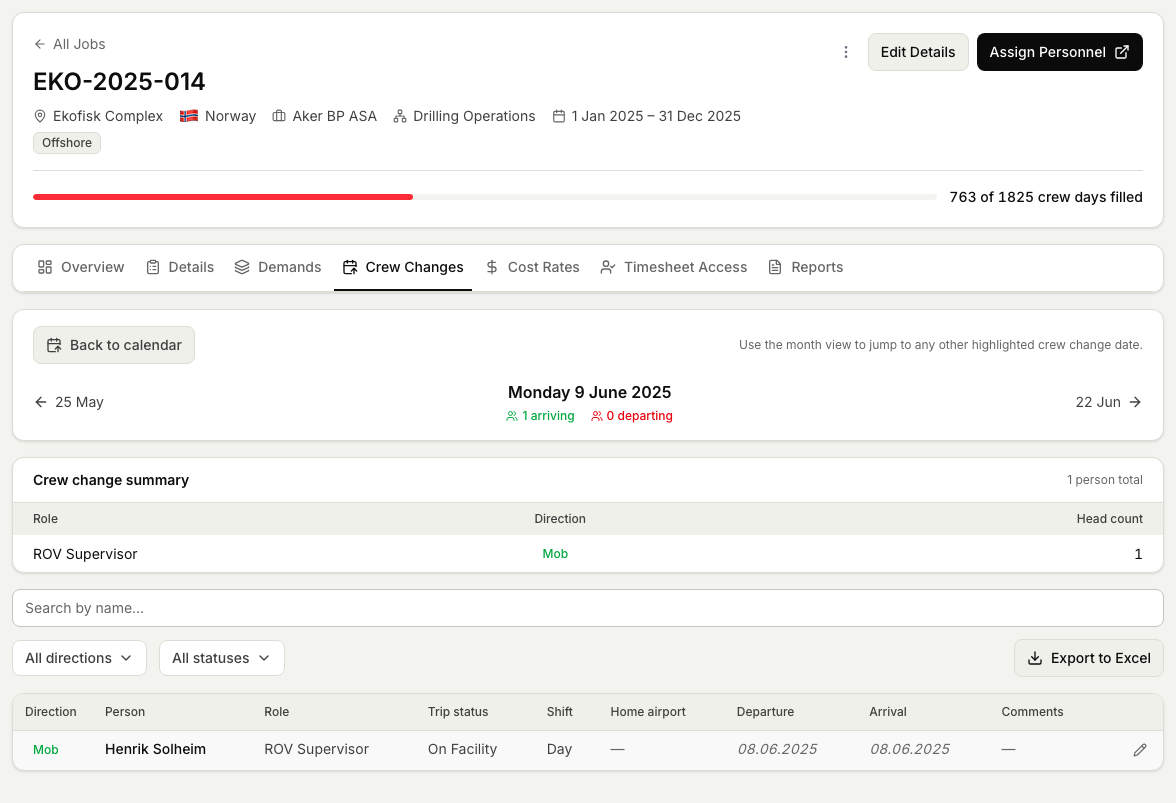
- Select a crew change to see who is arriving and who is leaving on that date.
Export the manifest
Once you have the crew change you want, export its manifest to share with the crew, the facility, or your travel desk.
- With the crew change open, choose to export the manifest.
- Planner produces the list of who is arriving and who is leaving on that crew change.
- Save or share the file as you need.
What the manifest is for
The manifest is a snapshot of one crew change: the people rotating on, the people rotating off, and the date it happens. It gives everyone involved a single agreed list to work from. When you also need to arrange how those people physically travel, move on to managing the trip.