Find and view jobs
When you have more than a handful of jobs, you need a fast way to find the one you want and to see how jobs sit against each other over time. The job list lets you search and filter, and the job plan timeline lays jobs out along a calendar. Both are read-only ways to look at your work, so you can browse freely without changing anything. You need the View planning permission.
Find a job in the list
The job list is the quickest way to reach a specific job.
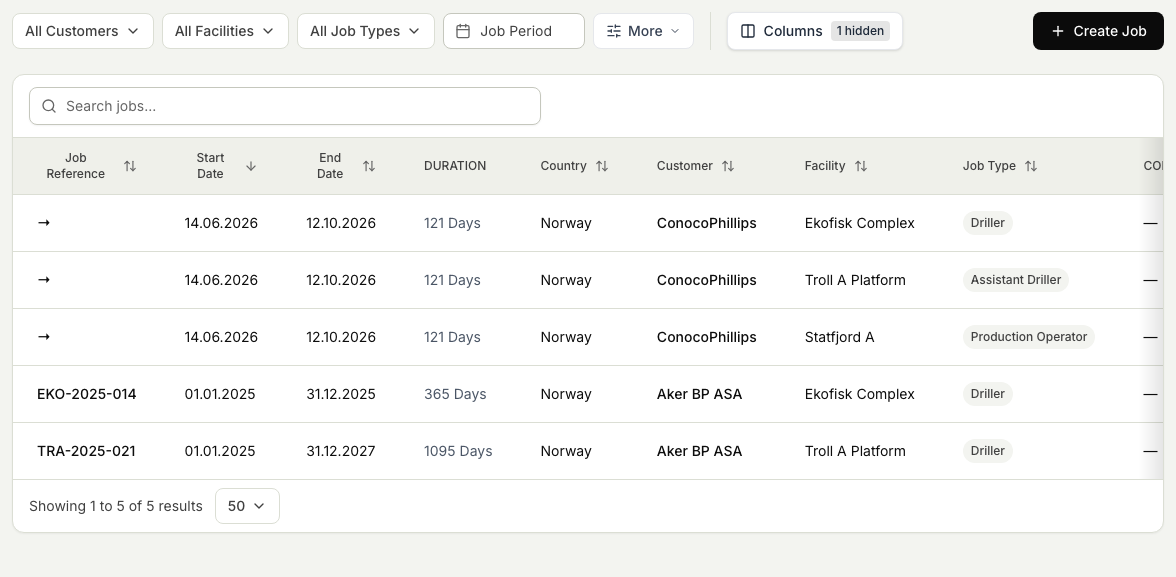
- Open Jobs. The list shows your jobs with their key facts, such as the facility, the customer, and the dates.
- Type into the search box to narrow the list by name or reference as you type.
- Use the filters to focus on the jobs you care about, for example by facility, customer, job type, or date range.
- Select a job to open it and read its details, demands, and crew changes.
Read the job plan timeline
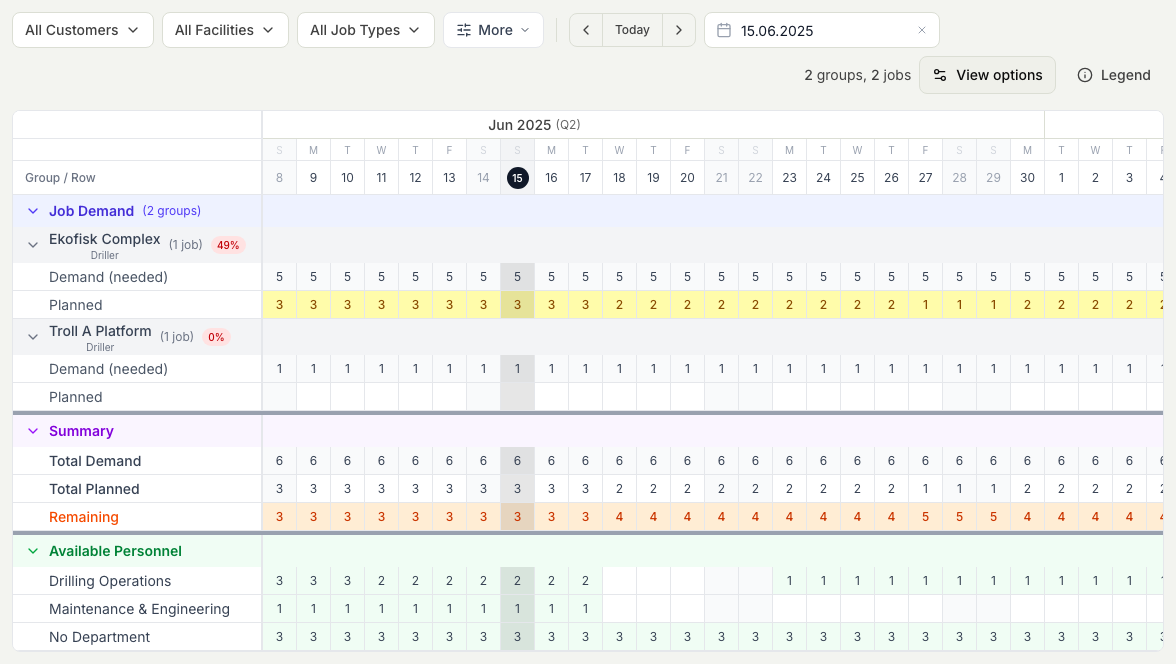
Where the list answers "which job is that", the timeline answers "what is happening when". It lays each job out as a bar along a calendar, so overlaps and gaps are easy to spot.
- Switch to the timeline view of your jobs.
- Adjust the time range to zoom in on a few weeks or out to a longer stretch.
- Read each bar to see when a job starts and ends and how it lines up with the jobs around it.
- Select a job's bar to open it, the same as selecting it in the list.
What you can and cannot do here
Viewing jobs is deliberately safe. With the View planning permission you can search, filter, open, and read any job, but you cannot create, move, or edit one. When you do need to make a change, someone with the Plan rotations permission can create a job or move a job to new dates.