Manage trips and crew-change logistics
Knowing who is on a crew change is only half the job. The other half is getting those people physically to and from the worksite: the flight times, the transport between locations, and telling everyone where to be. A trip is where you organise that. This article shows how to record a trip's travel times, see when a trip is a shuttle, and read the log of messages sent to the crew. You need the Plan rotations permission.
Set the travel times
Start with the fixed points of the journey: when the crew reports and when they reach the worksite.
- Open the crew change and go to its trip.
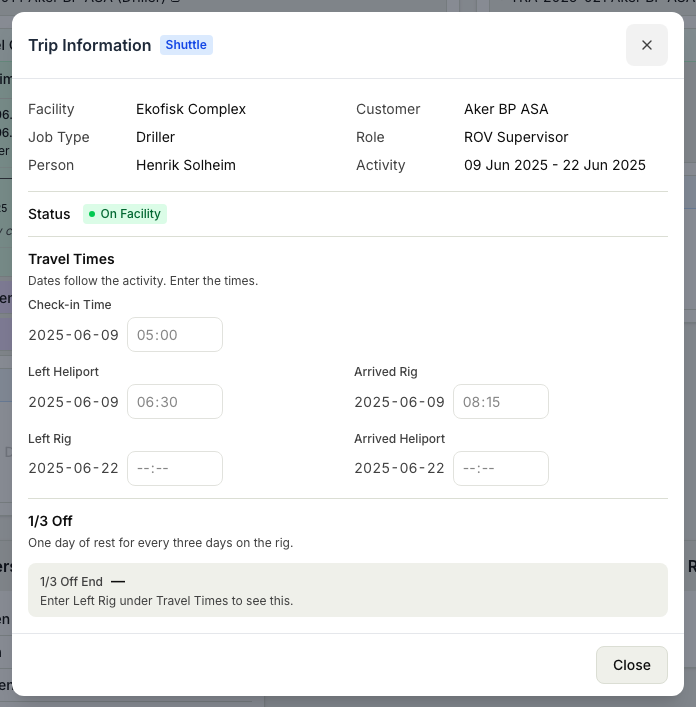
- Under Travel Times, record the outbound leg: Left Heliport (when the crew leaves the departure point) and Arrived Rig (when they reach the facility).
- Record the return leg the same way, with Left Rig and Arrived Heliport.
- Save the times so they show for everyone working the trip.
See when a trip is a shuttle
Crew rarely travel in a single hop. A shuttle carries them between locations, for example from a pickup point to the heliport and on to the rig. When a trip is part of a shuttle, Planner marks it with a Shuttle badge on the trip so you can tell it apart from a single-hop journey. The shuttle legs come from the schedule rather than being built by hand in the trip, so the trip is where you recognise a shuttle and read its travel times, not where you assemble the route.
Read the notification log
A trip keeps a record of the text messages sent to the crew about their travel. Open the trip and expand its Notification Log to see each message that has gone out: when it was sent, whether it was sent or failed, and who sent it. This is a read-only history, so it is where you confirm the crew has been told about a trip, rather than where you compose a new message.
Keeping a trip up to date
A trip is a living plan. As travel firms up or slips, update the travel times so the record matches what actually happened. You can follow a trip's progress through its status, covered in update a trip's status. If the whole job moves, revisit its trips afterwards, since the dates the crew travel against have changed. See move a job to new dates.