Change a job's dates
This shows you how to change the dates of a job that has demands or people on it. Planner shows what the new dates do before anything is saved, never decides for you what happens to the people the change affects, and stores exactly what you confirmed. You need the Plan rotations permission.
Step 1: Choose the new dates
Open the wizard from any of these places:
- Change dates… under the dates on the job's Details. A job with demands or people on it shows its dates read-only there.
- Adjust dates in the job bar on Schedule.
- Adjust Dates in the job's row menu in the job list.
Pick the new start and end dates. Below them, Planner says how many demands no longer fit the new dates and how many people are booked on the job.
You can move a job's dates into the past too: bookings before today follow the change like any other. Days on an approved or locked timesheet never change. If the dates can't be saved at all, Planner says why under the dates.
Step 2: Decide the demands
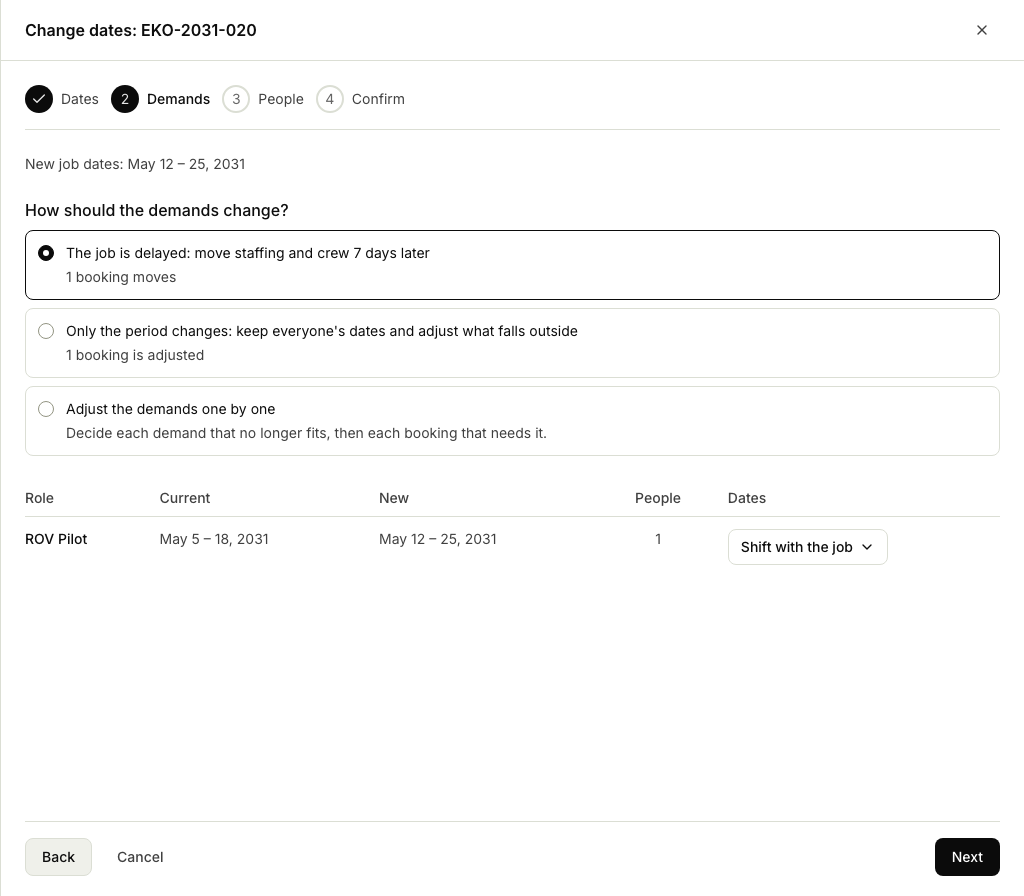
When the whole job moves, grows or shrinks, How should the demands change? asks what the change means, with what each answer would do to the bookings. Nothing is selected until you choose:
- The job is delayed (or brought forward): staffing and crew move with the job by the same number of days.
- Expand with job: demands that cover the whole job, and people booked for their whole demand, stretch to the new dates. Shorter demands and bookings keep their dates.
- Only the period changes: everyone keeps their dates, and anything that falls outside the job is cut to fit.
- Adjust the demands one by one: you decide each demand that no longer fits.
Below, every demand is listed with its current and new dates and how many people it has. To give one demand other dates, pick them in its Dates list: Leave unchanged, Job start, Job end, Match job dates, Shift with the job or Choose dates. Planner then decides the demands one by one, starting from what your answer gave each of them. A demand that no longer fits needs new dates before you can go on.
Step 3: Review the people
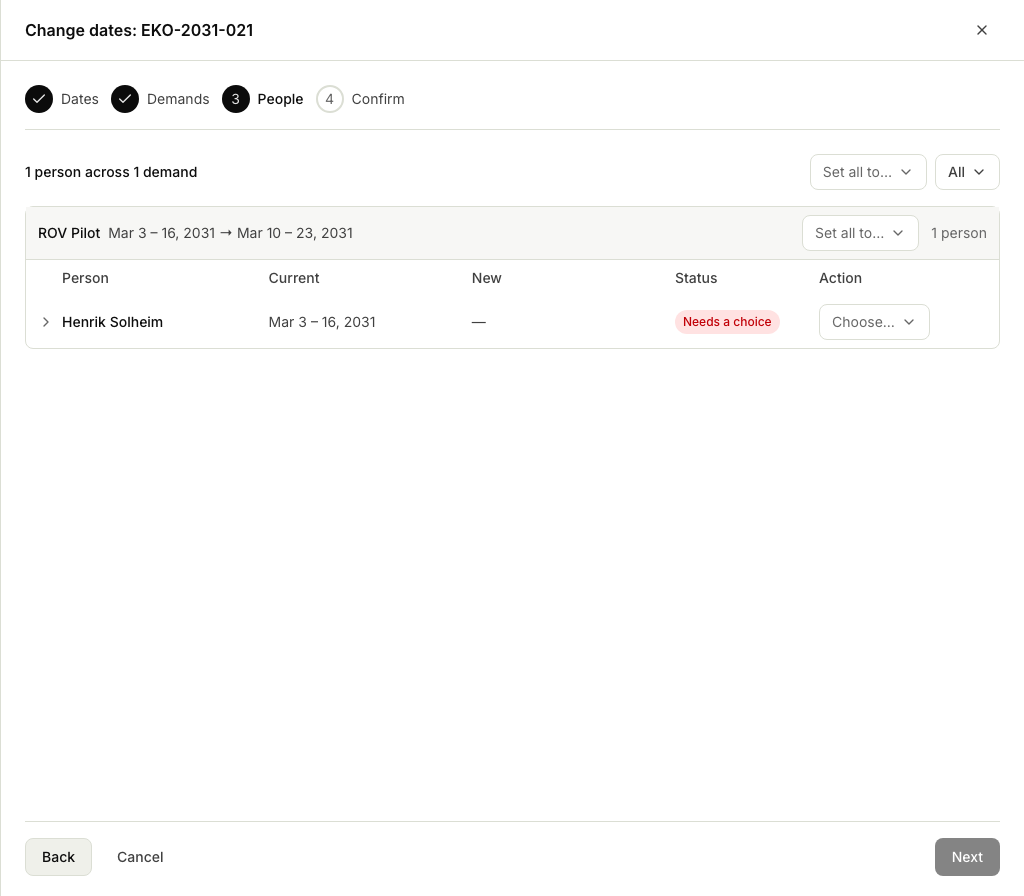
People lists everyone the change reaches, grouped by demand, with their current and new dates, a status and an action. N past days under a name counts the person's booked days before today. The status is one of:
- OK: the booking follows the change.
- N days off: the booking now covers days off, worked as overtime.
- Needs a choice: the booking can't follow the change, so pick an action for it.
A booking that follows the change shows its result as the selected action. You can change any row:
- Move with demand keeps the booking in the same place relative to the demand's new dates.
- Keep dates leaves the booking where it is, as long as it still fits the job and its demand.
- Stretch to demand makes the booking cover all of the demand's new dates.
- Adjust to fit keeps the part of the booking that is still inside.
- Move to start or Move to end keeps the booking's length, at the start or end of the new dates.
- Choose dates lets you pick the dates yourself. The person's free days in the new period are shown as a hint.
- Remove from job takes the person off the job, days before today included. To keep the days before today, pick Choose dates or Adjust to fit instead.
The actions you can pick come first, with the dates each one gives; an action that is not possible is shown greyed out below them. Open a row with its arrow to see:
- Result: what the selected action does to the booking, for example Drops Oct 20 or 3 days later, and any days off it works as overtime.
- Rest: the rest before and after the new dates (see below).
- N actions not available: select it to see why. Under Blocked come the actions something stands in the way of, with what: Blocked by Vacation with its dates, a booking on another job, an approved timesheet, or days where the person's calendar is blank. Under Don't apply to this change come the actions this kind of change has no use for, for example Move with demand when the dates don't shift; while something is blocked, these are only named.
Planner never books anyone over leave or another booking, and never on days their calendar does not cover. Days off are allowed, as overtime.
Set all to…, for everyone or for one demand, sets an action on every row where it can be used, and lists anyone it could not be set for with the reason. Show filters the rows by status.
If your organisation uses Timekeeper and the change moves days before today, Planner reminds you that hours already entered on those days stay on their dates. Review them after the change.
Reading the rest-time hints
For offshore work, Rest in a row's details compares the days off before or after the new dates with the neighbouring tour, for example 8 days off before, after a 14-day tour. These are information only and never stop a change. They help you make the rest and overtime call yourself.
Two things are worth knowing when you read them:
- Abroad tours are flagged, not judged. A tour abroad follows different rest rules, so Planner marks it rather than calling it short.
- Standby time currently counts as rest. A gap can therefore look longer than the true rest is.
Step 4: Confirm and save
Confirm shows everything saving will store, worked out by running the change and undoing it:
- the job's old and new dates at the top, with the demands' new dates under them; demands that change alike share a line;
- how many bookings are moving, stretched, adjusted, kept and removed;
- if anyone works on days off, who and how many days, with a box to confirm the overtime; tick it before you select Save new dates;
- a table of the people, grouped by what happens to them (removed, adjusted, moved, stretched), with each booking's dates before and after and, where your organisation generates 1/3 Off, the person's rest before and after;
- under a person, any rest day that could not be placed because something else is on it, or, where 1/3 Off is not generated, a trip's rest that stays where it was because the trip moved away from it.
If something changed after you reviewed, for example someone booked one of the people on another job, nothing is saved. Planner says what changed, and Review again takes you back to the people with your choices kept.