Check who is on board today
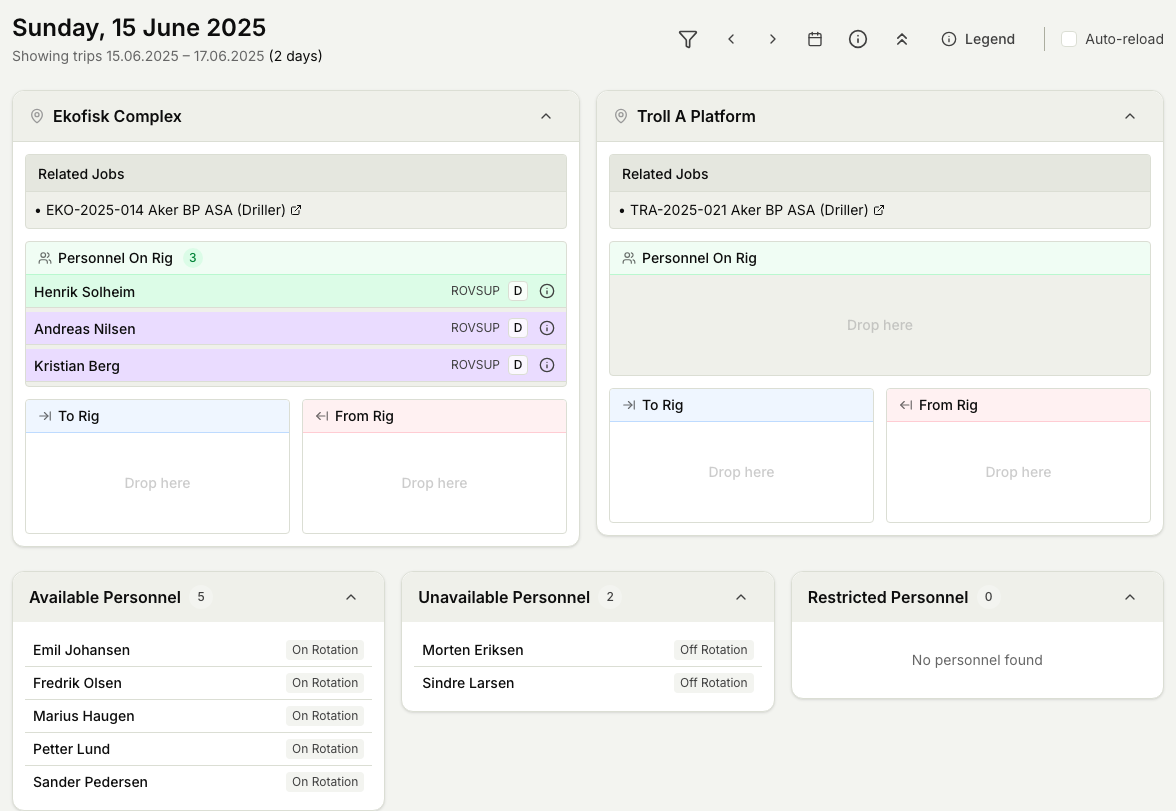
The operations overview is your live picture of every installation right now: who is on board, who is available to send out, who cannot go, and where each person is in their trip. This guide shows you how to open it, read the panels, and drill into a single person's status.
Before you start
- You need the View planning permission to open and read the overview.
- The overview refreshes on its own about every 60 seconds, so what you see stays close to real time without you reloading the page.
Steps
- In Planner, open Overview. The page loads the current date and shows one panel per installation.
- Read each installation panel. It groups the crew by trip stage: who is on the installation now, who is on the way out to it, and who is on the way back.
- Scan the three workforce panels below the installations: Available Personnel (free to assign), Unavailable Personnel (already committed or off), and Restricted Personnel (blocked, for example by a missing competency or a rest requirement). Each person shows a short reason where one applies.
- To look at a different day, use the date controls at the top. A badge such as "Tomorrow" or "Yesterday" reminds you when you are not looking at today, and Today brings you straight back.
- Narrow the picture with Filter: limit by job type, department, country, contract, or business unit when you only care about part of the operation.
- Select a person's name in any panel to open their year plan, where you can see the trips and activities behind their current status.
- Open a trip to check its details, or update a trip's stage as people move out to and back from an installation. Moving a trip backward asks you to confirm and note why, so the record stays honest.
Related articles
Was this article helpful?