Assign a person to a job
By the end of this tutorial you will have placed a person on a coverage slot, adjusted their bar, previewed a move, and dealt with a conflict. Set aside about 15 minutes.
Before you start
- You need the Plan rotations permission to place and move personnel.
- You also need View the schedule to see the board you are working on.
- The people you want to place should already exist with the right position. See How positions and the org structure work.
- If you are new to the board's layout, read Read the schedule board first.
Phase 1: Place a person on a slot
Find the coverage line you want to fill and put a person on it.
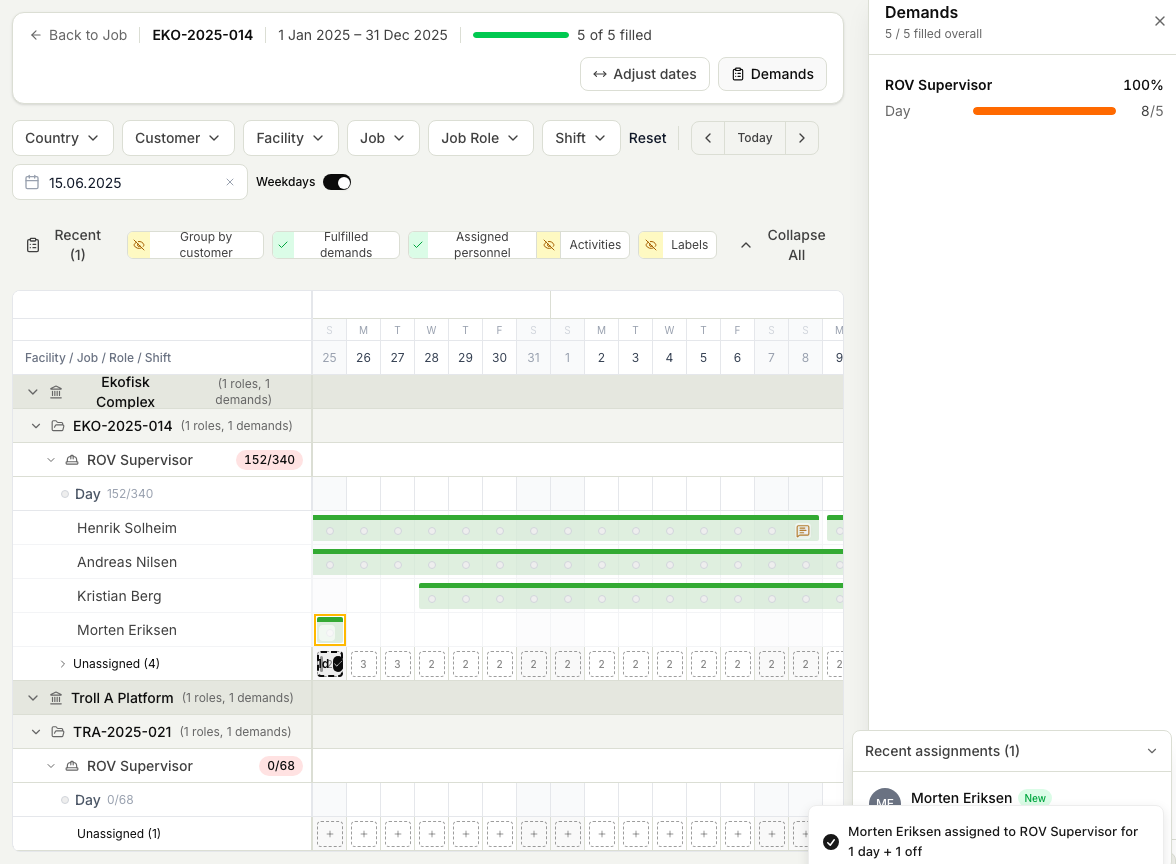
- Open the Schedule board and filter down to the job and role you are staffing.
- Select the coverage line that needs someone to see the candidates who could fill it.
- Compare candidates on competency match, availability, and any conflicts, then choose one to assign them. Planner writes out their on and off days across the cycle. Planner ranks the candidates by fit to help you choose, and lets you filter and sort the list; see Find the best person for a demand.
Phase 2: Adjust the bar
Once a person is placed, fine-tune the period they cover.
- Drag the ends of the assignment bar to resize it, extending or shortening the days they are on.
- Drag the whole bar sideways to shift the period earlier or later.
Phase 3: Preview a move before you commit
For larger changes, Planner shows you the effect before it is applied.
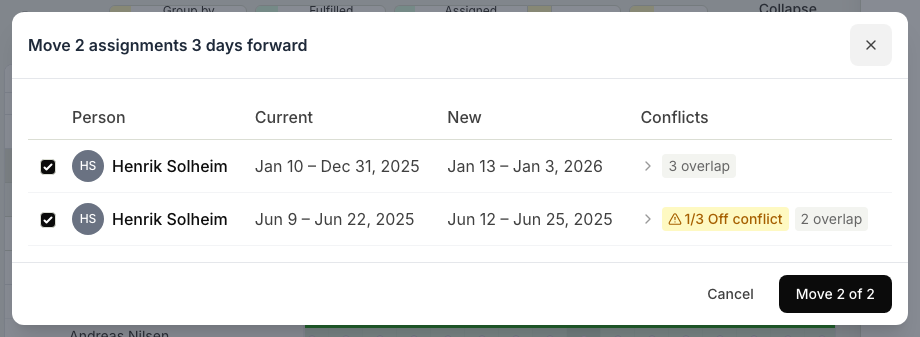
- Start a move on the board. Planner shows a preview of where the work and its people would land.
- Check the preview for anything the move would break, such as gaps in coverage or people no longer fitting.
- Confirm to apply the move, or cancel to leave the plan untouched.
Phase 4: Resolve conflicts
If a placement clashes with something else, Planner flags it so you can decide what to do.
- Off rotation: the person is scheduled off on those days. Choose someone else, or adjust the dates.
- Already assigned: the person is placed on other work in that period. Free them up first, or pick another candidate.
- Activity blocking: an activity such as leave or training sits on those days. Move the activity or the assignment, or choose another person.
Not every placement needs a demand behind it, so a person covering days with no matching demand is not itself a conflict. See How rotations, demands, and assignments fit together.
Related articles
Was this article helpful?