Bulk-assign a rotation
If your organisation has bulk rotation assignment enabled, you can assign a rotation to many people at once instead of placing them one by one. There is a preview step so you can check the outcome before anything is applied. You need the Plan rotations permission.
Choose who and which rotation
- In Planner, open Bulk Rotation from the menu to start a bulk rotation assignment.
- Select the people you want to include. You can pick several crew members in one go.
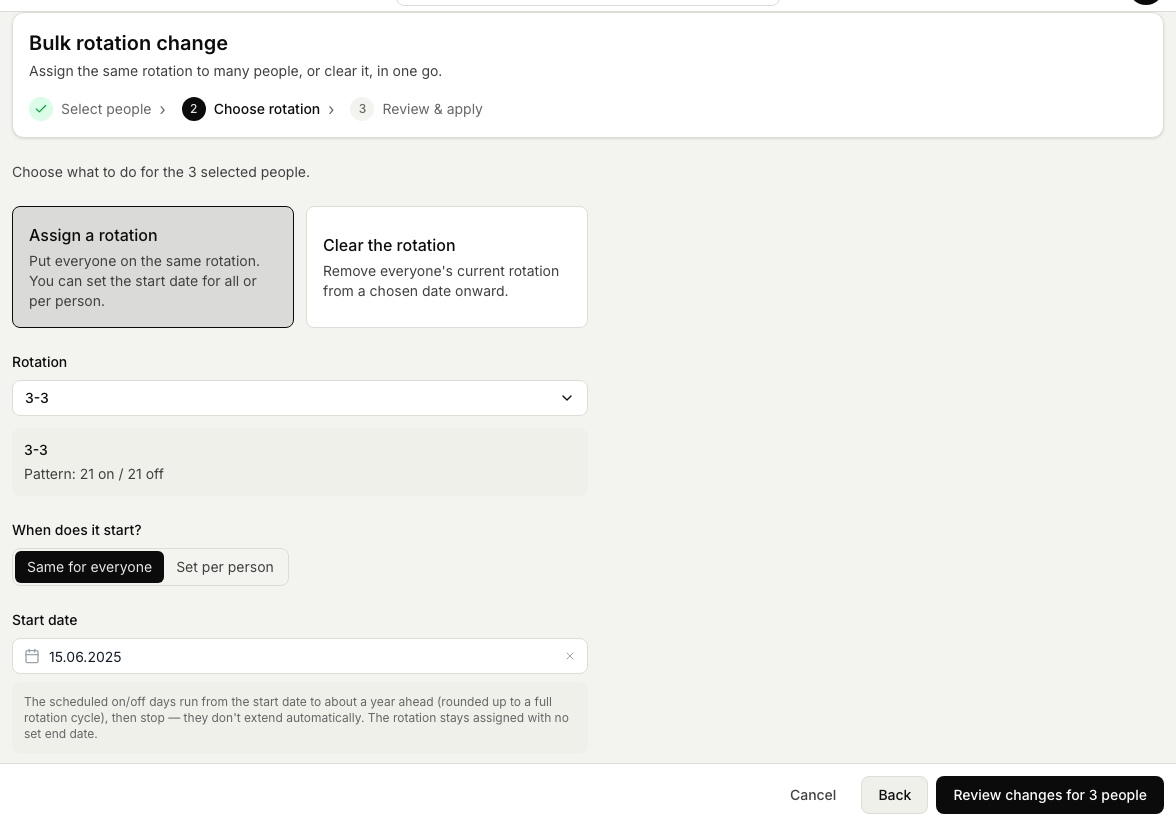
- Choose the rotation to apply and the start date the pattern begins from.
Preview the outcome
Before anything is written, the app shows you what the assignment would do:
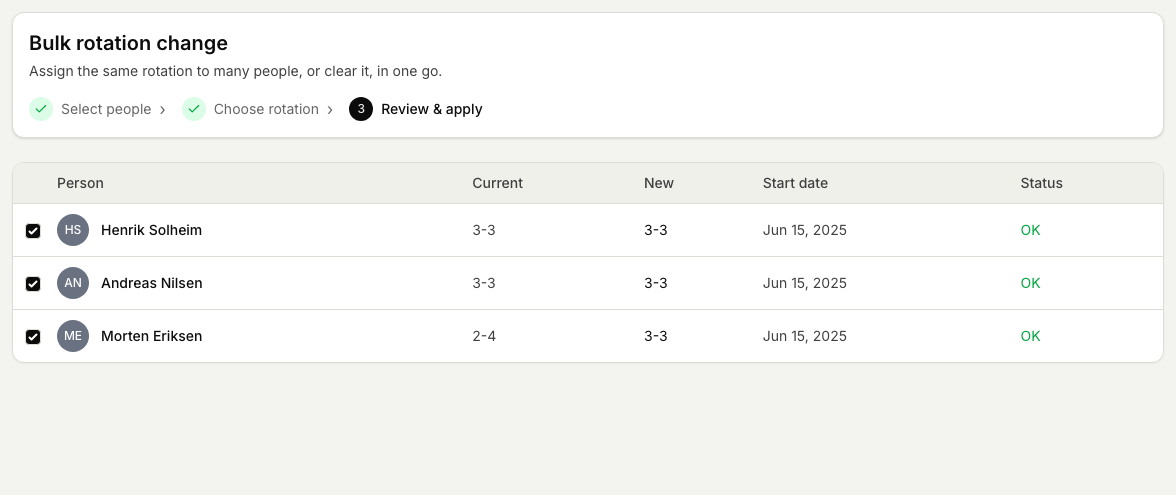
- Review the preview. It shows how each person's on and off days would be laid out.
- Look for anything the change would break, such as a clash with days a person already has planned.
- Go back and adjust your selection or the start date if the preview is not what you want.
Apply the change
- When the preview looks right, apply it. The app writes out the on and off days for every selected person across the cycle.
- Check the schedule board to confirm the people now show the rotation you assigned.
As with a single assignment, a rotation fills roughly one year ahead and then stops, so extend or re-assign later to keep coverage going.
Related articles
Was this article helpful?