Find the best person for a demand
When a demand still needs someone, Planner does more than list who is free. It scores every candidate on how well they fit the role and the dates, and puts the best fit at the top, so you can place the right person quickly instead of checking each one by hand. You need the Plan rotations permission.
Open the candidates for a demand
On the schedule board, find a coverage line that still needs someone and open its list of candidates. Planner shows the people who could fill that slot, already ranked with the strongest fit first.
How the ranking works
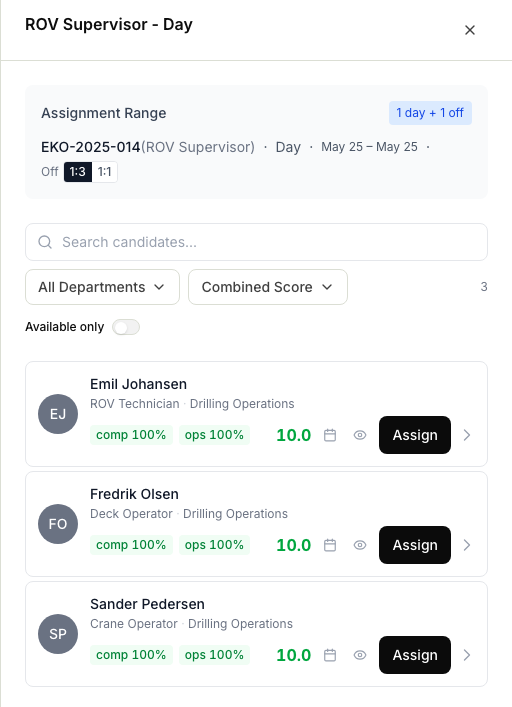
Planner works out a fit for each candidate from two things, then sorts the list so the best overall fit is at the top.
- Competency match. How many of the role's required competencies the person holds, at the required level and with supporting evidence when the competency requires documentation. This shows as a percentage, for example
comp 87%. Someone who holds a competency but at a lower level than required counts as a partial match rather than a full one. Missing required documentation is shown as its own gap. If one of their matching competencies is due to expire within about a month, the percentage is trimmed a little so the risk is visible. - Operational fit. Whether the person is available for the dates, how much of their yearly hours they still have free, and how much overtime they are already carrying.
The overall ranking leans more on competency match than on operational fit, so a well-qualified person ranks highly even if their workload is fuller. The match percentage is colour-coded so you can read it at a glance: a strong match, a partial one, or a weak one.
Read a candidate
Each candidate shows what you need to make the call:
- Availability for the dates: available, partly available, or unavailable, along with any conflicts, such as being off rotation, already assigned elsewhere, or having an activity like leave or training on those days.
- Competency detail: each required competency, whether the person holds it, their level against the required level, whether it has expired or is expiring soon, and whether required documentation is missing. A document-warning icon marks requirements that need evidence.
- Workload: the hours they have already used this year against what is expected, and the overtime they are carrying.
Narrow the list
If the list is long, or the top result is not quite right, tune it:
- Search by name, or filter by department.
- Turn on Available only to hide anyone with a conflict on the dates.
- Turn on Must match all checked to show only people who fully satisfy every competency you have kept checked. If a checked competency requires documentation, the person must also have an attachment on that competency.
- If a required competency is not essential for this particular placement, uncheck it so it no longer counts against people who lack it.
- Sort the list by Combined Score (best overall fit, the default), by Compliance % (competency match), by Operational %, or by name.
Resolve missing competency documentation
If the document-warning icon says that a competency is registered but its required documentation is missing:
- Confirm the person otherwise holds the correct competency and level.
- Open People → Competencies → Missing Documentation.
- Find the person and choose Add documentation. Add the evidence to the exact person competency; a general personal document does not count.
- Return to Planner and refresh the candidates. The warning clears and the requirement becomes a full match.
Missing documentation lowers the competency score and causes Must match all checked to exclude the person. If your organisation uses strict competency validation, it also blocks the assignment. Without strict validation, treat the warning as a compliance decision and follow your organisation's exception process.
Place the person
When you have found the right person, assign them straight from the candidate list. Planner writes out their on and off days across the cycle. To resize their bar, preview a move, or resolve a conflict afterwards, see Assign a person to a job.