Read the schedule board
The schedule board is the drag-and-drop Gantt where you see who is scheduled where and when. This article covers reading and filtering it. Placing and moving people is covered separately.
Before you start
- You need the View the schedule permission to open the board and read it.
- To place or move personnel you also need Plan rotations. Reading the board does not require it. See Assign a person to a job for the placing steps.
How the board is organised
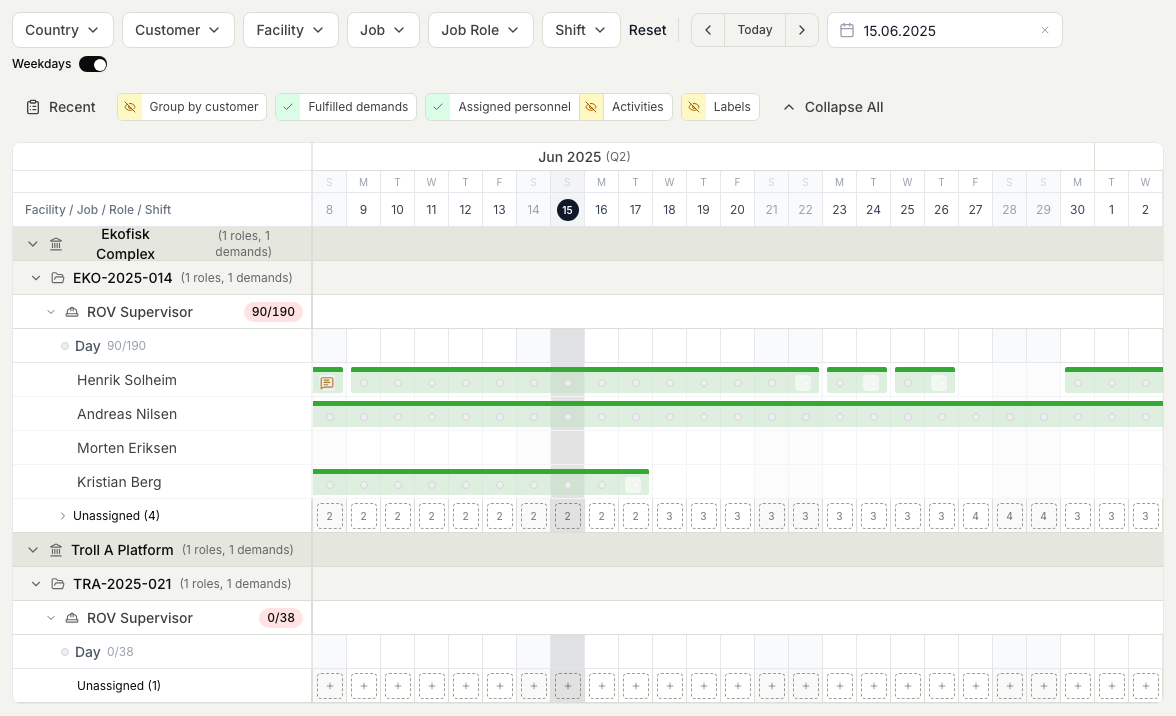
The board is a timeline. Dates run left to right, and the rows on the left are grouped from the widest grouping down to the individual coverage line:
- Customer and Facility (the installation the work belongs to)
- Job
- Job role (the role the job needs, for example ROV Pilot)
- Shift
Each assignment shows as a bar across the days a person is on. Expand or collapse a job or role to show or hide the coverage lines underneath it.
Steps
- Open Planner, then open the Schedule board.
- Set the date range you want to look at so the timeline covers the right period.
- Read down the grouped rows to find the customer, facility, job, and role you care about, then read across to see who is on which days.
- Narrow the view with the filters at the top. You can filter by Country, Customer, Facility, Job, Job role, Shift, and Weekdays.
- Expand a job or role to reveal its coverage lines, or collapse it to keep the view tidy.

See who can fill a slot
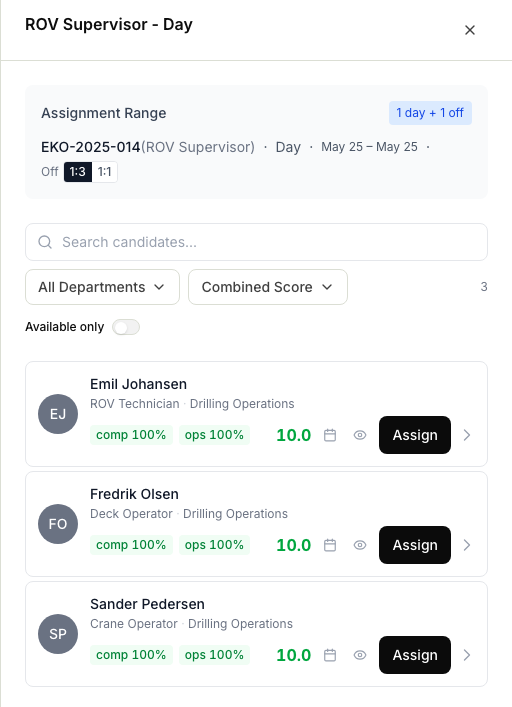
When you look at a coverage line that still needs someone, Planner can show the people who could fill it. For each candidate you see how well they match the role's competency requirements, whether they are available for those dates, and any conflicts such as being off rotation or already assigned elsewhere. This is how you judge who is the best fit before you place anyone.
Planner ranks these candidates by how well they fit and lets you narrow the list, so you can pick the best person quickly. See Find the best person for a demand. Actually placing that person is a separate step that needs the Plan rotations permission.