Set on/off days and add activities
In a person's year plan you can set their on and off days directly, and add activities to specific days, for example a course, travel, or standby. The schedule board shows these days but does not let you edit them, so this is work you do in the year plan. When you add an activity the app checks it against what is already planned and warns you if there is a conflict. You need the Plan rotations permission.
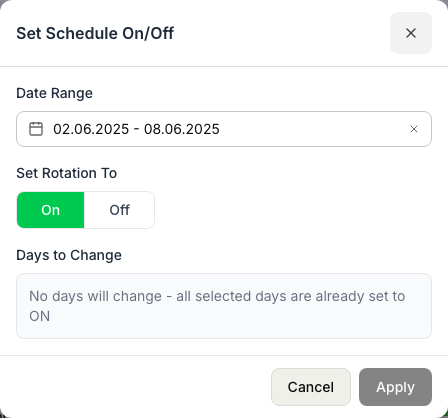
Set on and off days
- Open the person's year plan and find the dates you want to change.
- Select the day or range of days you want to set.
- Mark those days on or off. The year plan updates to show the new pattern.
Use this when a person's real days differ from the rotation pattern, so the plan reflects what is actually happening.
Add an activity to specific days
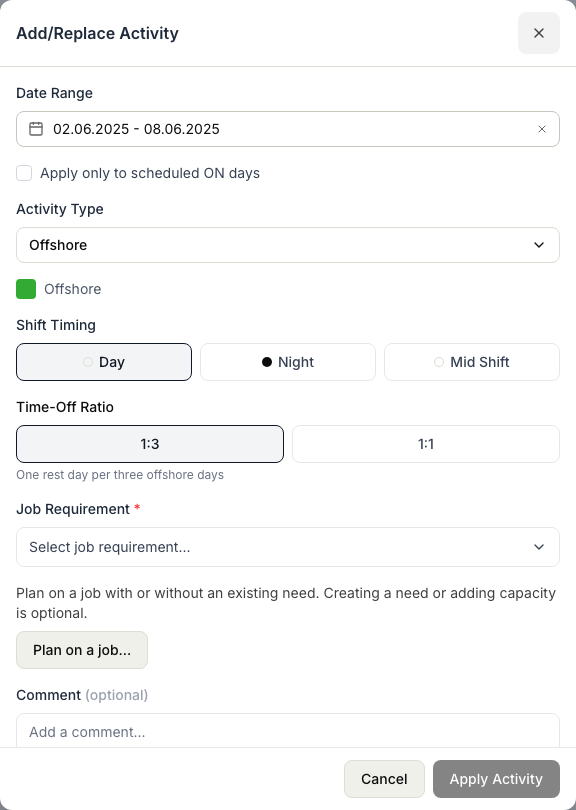
- In the person's year plan, select the day or range of days the activity covers.
- Choose to add an activity.
- Pick the activity type, for example a course, travel, or standby.
- Set the dates the activity runs for, and add a comment if you want to explain it.
- Save the activity. It appears on those days for that person.
Resolve a conflict
When you add an activity, the app checks it against what is already planned for that person and warns you if it clashes. Common clashes are:
- The person is already working those days. An assignment already covers the period. Move the assignment or the activity, or shorten one so they no longer overlap.
- Another activity is already on those days. Two activities cannot sit on the same days. Move or remove one of them.
- The days do not fit the person's pattern. The activity falls on days the person is off. Adjust the on and off days first, or move the activity.
Read the warning, decide which side to change, and save again once the clash is gone.