Open a person's year plan
The year plan is one person's whole year on a single screen. By the end of this tutorial you will have opened it, added rotations and activities, set a part-time period, and left a work note. Set aside about 15 minutes.
Before you start
- You need the Plan rotations permission to change a person's year plan.
- The person should already exist with the right position. See How positions and the org structure work.
Phase 1: Open the year plan
- Open Planner and find the person you want to plan, then open their year plan.
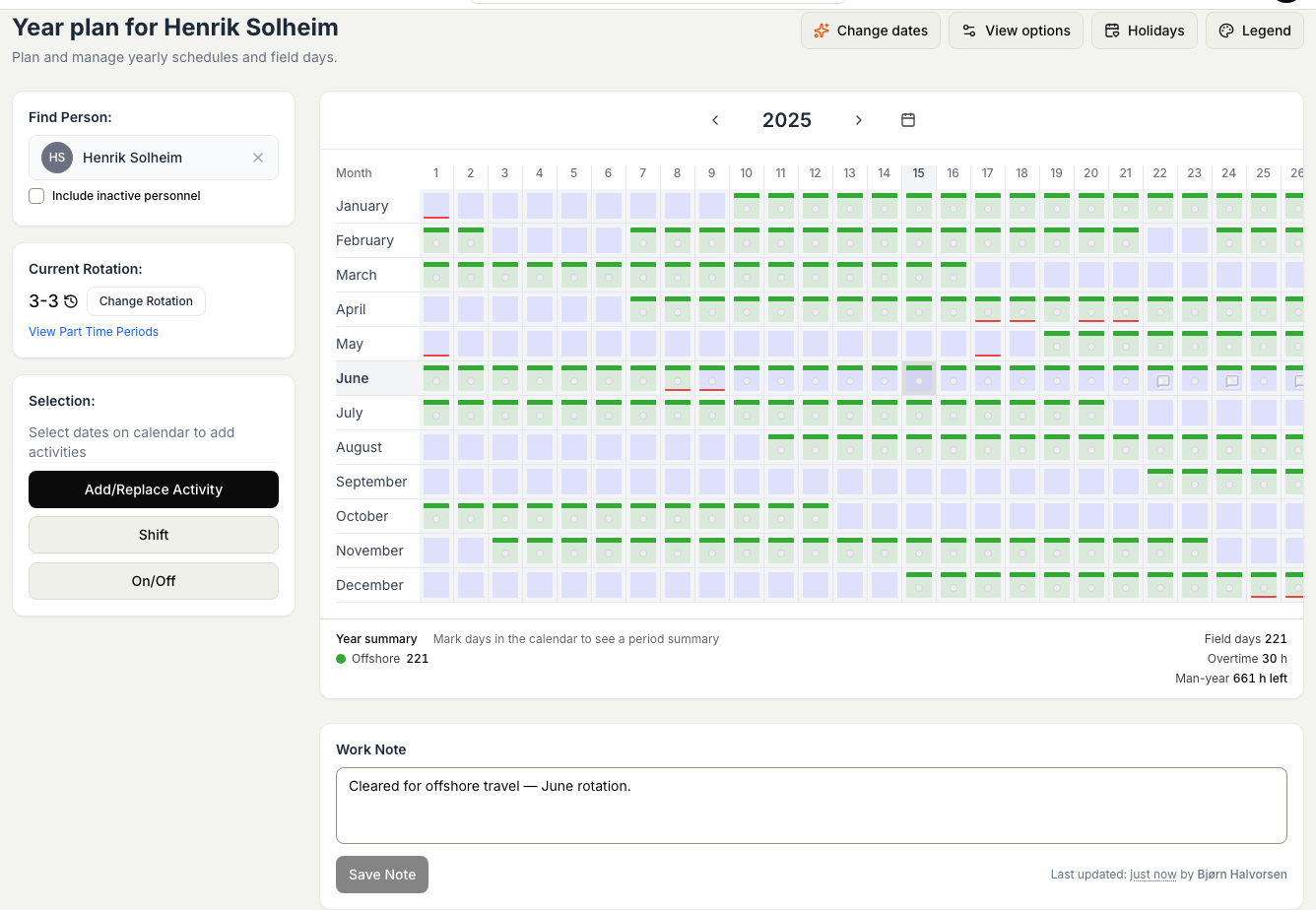
- Check the year at the top and change it if you need a different one.
- Read across the calendar to see their on and off days, jobs, and activities for the year so far.
Phase 2: Add a rotation, shift, job, or activity
The year plan builds up from a few actions. Each opens its own dialog where you pick the dates and details.
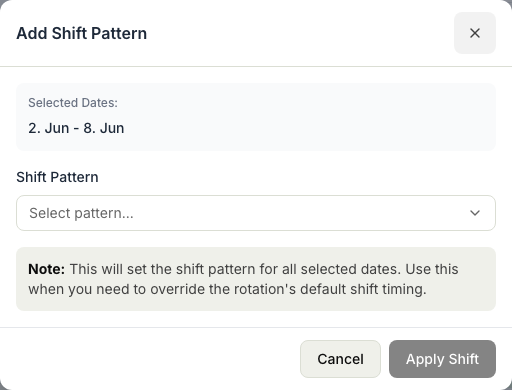
- Add a shift pattern to lay down a repeating on and off rotation across the dates you choose.
- Assign a job to place the person on a specific job for a period.
- Add an activity such as leave, travel, or training on specific days.
Pick the dates in the dialog, confirm, and the year plan redraws with the change.
Phase 3: Set part-time periods
If the person works reduced hours for part of the year, record it so their availability and hours reflect it.
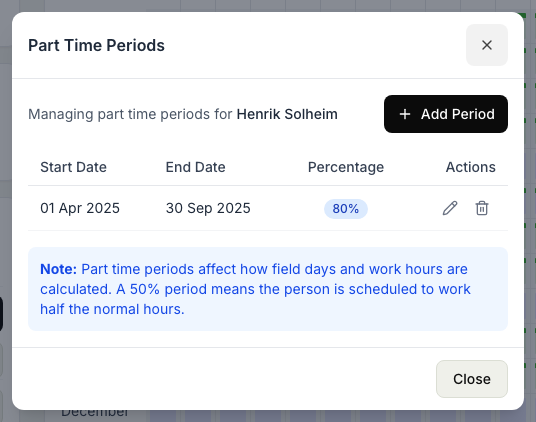
- Open Part Time Periods from the year plan.
- Add a period with its start and end dates and the part-time arrangement it covers.
- Save. You can edit or delete a period later from the same place.
Phase 4: Add a work note
Leave a short note on the year plan to tell the rest of the team something they should know about this person's schedule.
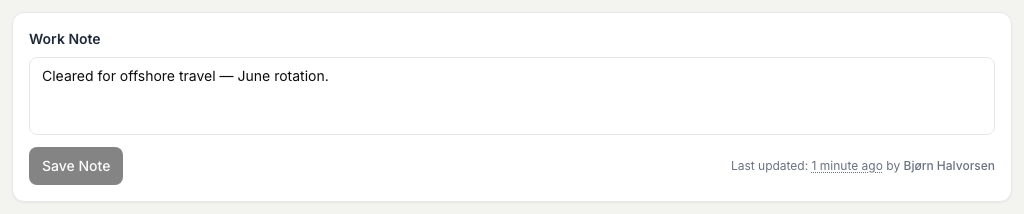
- Open the work note on the year plan.
- Write the note and save it.
Related articles
Was this article helpful?