Confirm who is on each installation
The Personnel On Board report, usually shortened to POB, lists exactly who is on each installation for a date you choose. Because every installation has a POB limit for safety, this report is what you reach for when you need to confirm the head count and share it. This guide shows you how to run it, narrow it, and export it.
Before you start
- You need the View planning permission to open, read, and export the report.
Steps
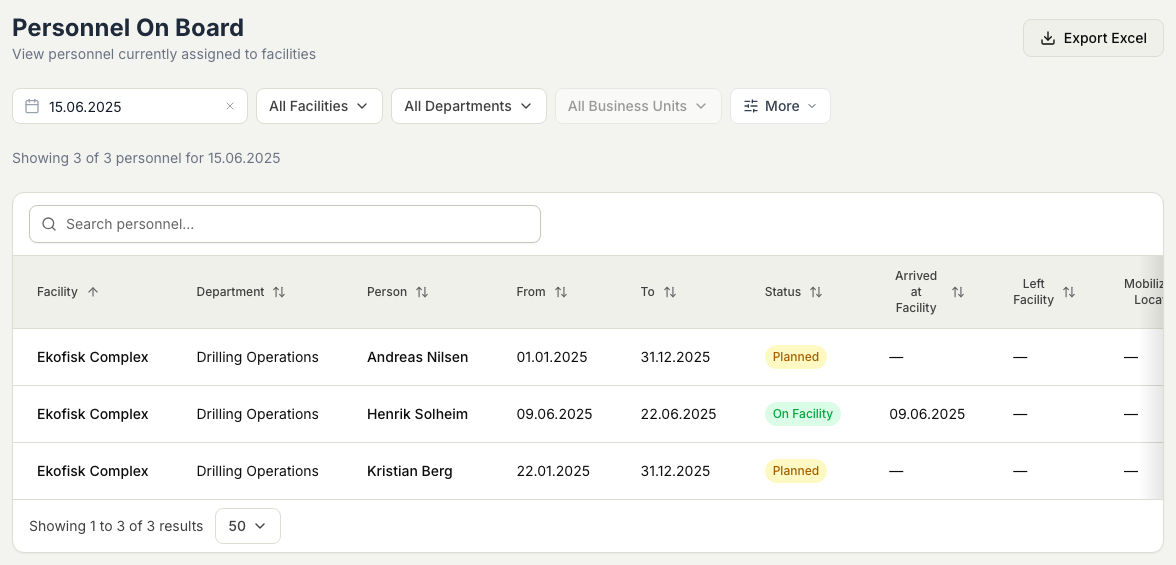
- In Planner, open Reports, then Personnel On Board. The table loads for today's date.
- Set the Report Date to the day you want the head count for.
- Narrow the list with the filters: Facility, Department, Business Unit, and, under More, Country. Use the search box to find a single person by name or employee ID.
- Read the table. Each row shows the person, their installation and department, their trip dates, and a status such as On Facility, To Facility, or From Facility, alongside when they arrived and left.
- Sort by any column heading to order the list, and use the controls at the bottom to change how many rows show per page and to step through pages.
- The summary line above the table confirms how many people the report is showing for the chosen date.
- To share the report, choose Export Excel. Check the preview, then download the file, which is named with the report date.
Related articles
Was this article helpful?