Run the utilization report
The utilization report shows how well your people are being used over a period you choose, by comparing how much of their available time is actually planned. Reach for it when you want to see who has spare capacity and who is fully booked, so you can balance the workload. This guide shows you how to run it, set the period, and read it by department or by person.
Before you start
- You need the View planning permission to open and read the report.
Steps
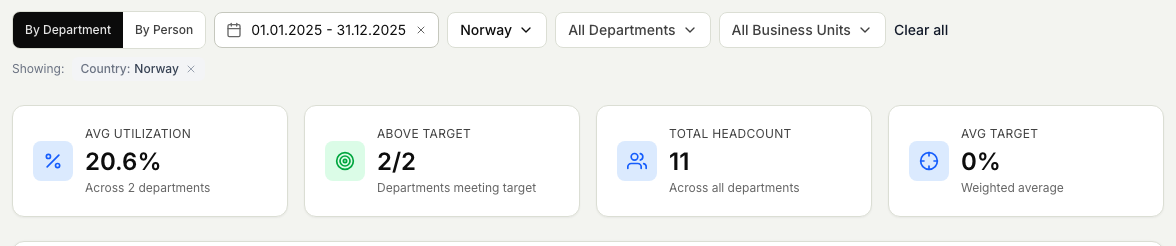
- In Planner, open Reports, then Utilization. It opens on the By Department view with a summary for a default period.
- Set the period. Choose the From and To dates that cover the range you want to measure.
- Narrow it with the Country, Department, Activity, and Business Unit filters.
- Read the summary cards at the top: the average utilization, how many departments are at or above target, and the total headcount for the period.
- Switch to By Person to see each person on their own row with how much of their available time is planned. Sort by utilization to bring the least-used to the top, and use the search box to find someone by name or ID.
Related articles
Was this article helpful?