Set up activity types
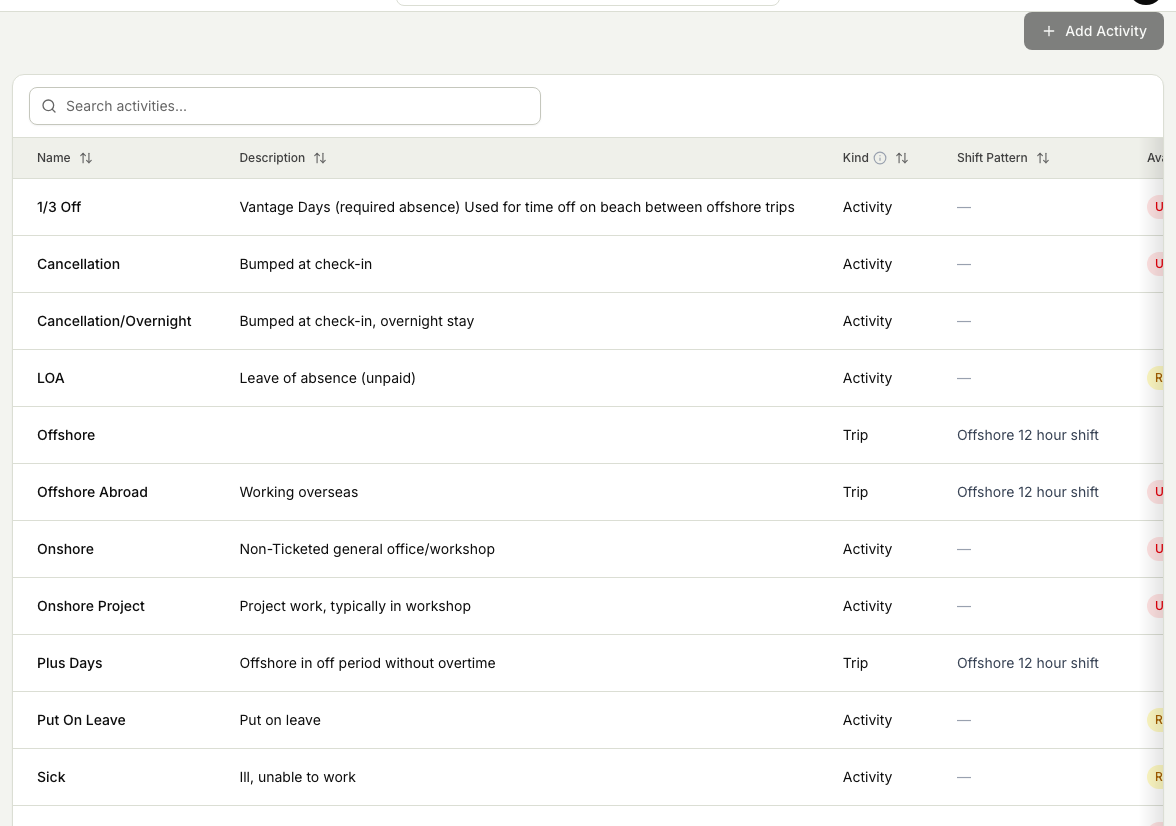
Activity types are the categories of time you can place on the schedule, such as offshore, travel, course, standby, and on and off time. This reference explains what they are, how they show up on the schedule, and what you can and cannot change from this screen.
What activity types are
An activity type is a kind of time you assign to a person on a given day. Instead of just marking a day as worked, you say what kind of time it is. Common examples are:
- Offshore time on an installation
- Travel to or from a site
- Course or training time
- Standby time
- On and off time in a rotation
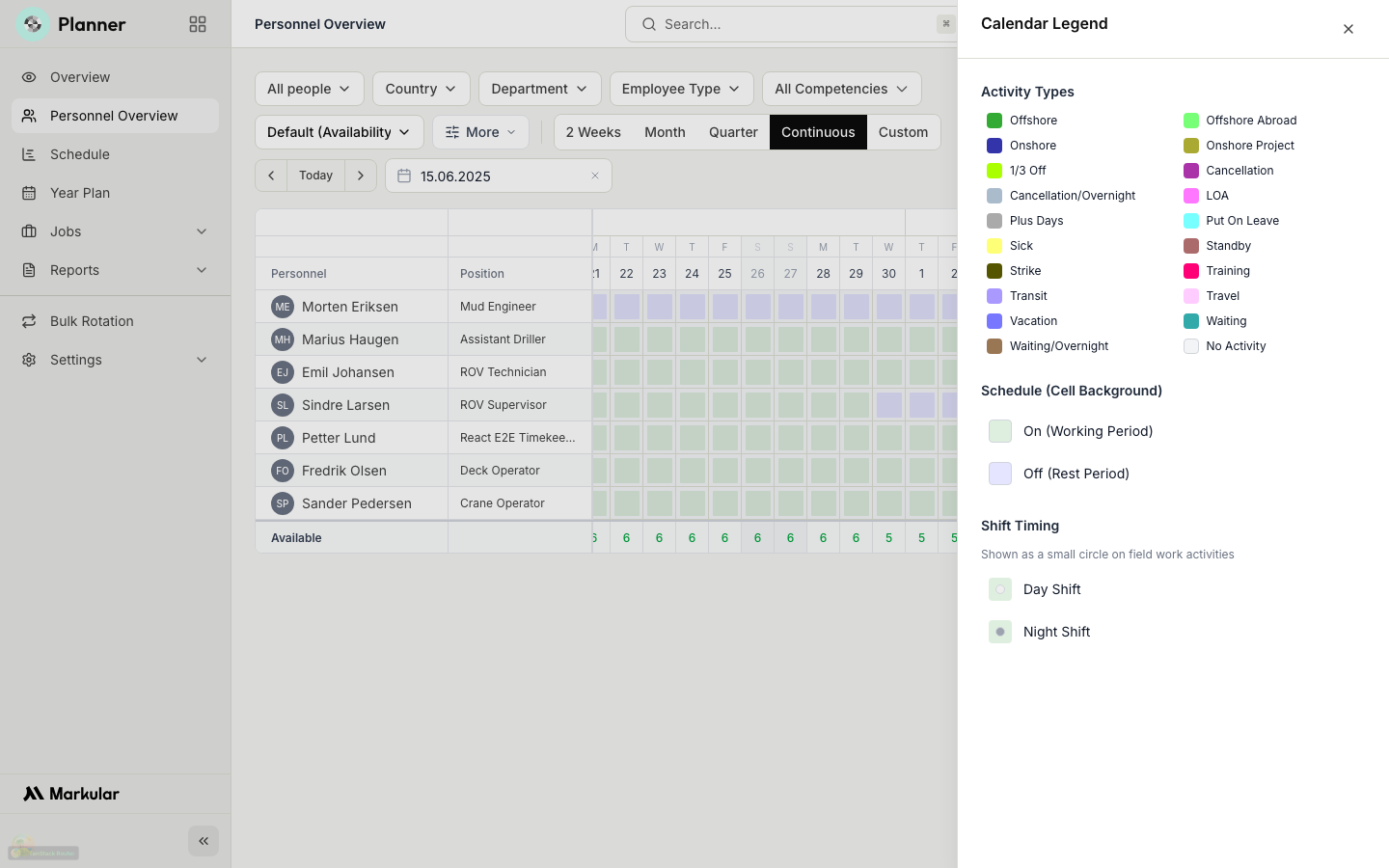
Each activity type has its own colour so you can read the schedule at a glance.
You need the Manage Planner settings permission to open this screen. See Planner permissions for who has it.
How they appear on the schedule
When you place an activity on a person's day, the schedule shows it in that activity type's colour. The legend on the schedule lists the activity types and their colours, so anyone reading the board can tell offshore time from travel from a course without guessing.
Each activity type can also carry its own shift timing. That means an activity can bring set working hours with it, so placing that activity on a day also sets the hours for that day.
What you can change here
Activity types are configured for your organisation, and this screen is read-only in this version. You cannot add, change, or remove an activity type here. The Add, Edit, and Delete actions are disabled, with a reminder to contact an administrator. Use it to review the activity types your organisation has and their colours.