Set up facilities, job roles, and job types
Facilities, job roles, and job types are the building blocks the rest of Planner is built on. Every job you create sits at a facility, and every demand asks for a job role or a job type. Set these up first, and the rest of your planning has real installations and real crew needs to point at.
What these three are
- Facilities are the places you plan for: your rigs, installations, and other work sites. A job always belongs to a facility.
- Job roles are the positions you crew for, such as crane operator or deck foreman. A role can be marked as a crew leader so the schedule knows who runs the crew.
- Job types are the kinds of work you run, used to group and describe jobs.
You need the Manage Planner settings permission to add or change any of these. See Planner permissions for who has it.
Before you start
Open Planner, then go to Settings. You will find separate pages for Facilities, Job Roles, and Job Types.
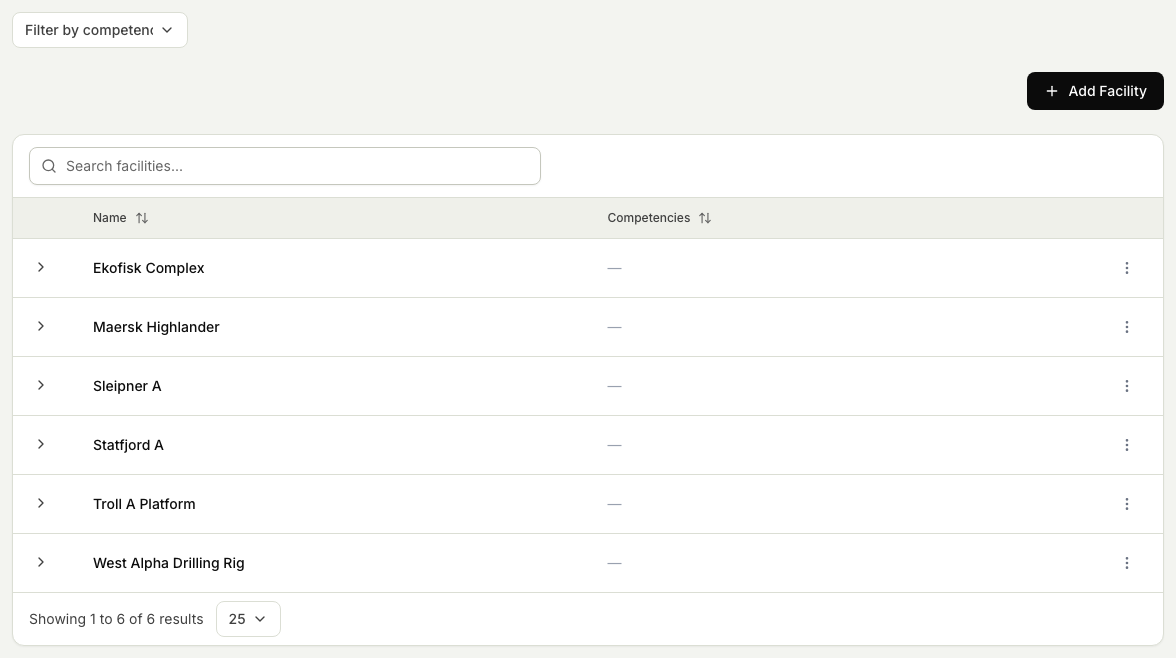
Add a facility
- In Settings, open Facilities.
- Select Add Facility.
- Enter the facility name, such as the rig or installation name.
- Save.
The new facility appears in the list and is immediately available when you create a job.

To change a facility later, select it in the list and edit it. To remove one, use the delete action on its row.
Add a job role
- In Settings, open Job Roles.
- Select Add Job Role.
- Enter the Role Name (for example, crane operator).
- Optionally add a Short Name to show a compact label on the schedule.
- Turn on Crew Leader if this role leads the crew.
- Save.
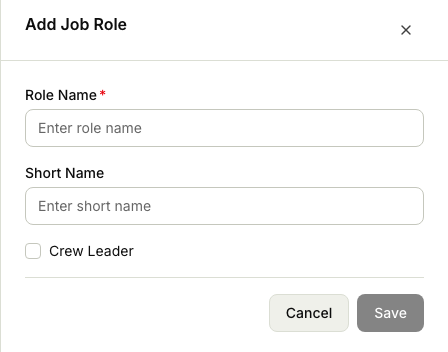
Job roles line up with the positions your personnel hold. For how positions are defined for people, see How positions work.
Add a job type
- In Settings, open Job Types.
- Select Add Job Type.
- Enter the name of the type of work.
- Save.

What happens next
With facilities, roles, and types in place, you can create jobs against a real facility and add demands that ask for the roles and types you just defined.