Map HR positions to job roles
People holds the position each person is in, and Planner asks for job roles when it builds a schedule. A position mapping links the two together, so that when the plan asks for a job role, the platform knows which people can fill it, by their position.
What a position mapping does
A person's position lives in People and describes the role they hold in your organisation. A job role lives in Planner and is what a demand asks for when you build a plan. These are two different lists, and they do not line up on their own.
A position mapping connects one to the other. Once a position is mapped to a job role, everyone in that position is recognised as able to fill that role on the schedule. Without the mapping, the plan asks for a role but has no way to tell which people match it.
You need the Manage Planner settings permission to add or change position mappings. See Planner permissions for who has it.
Before you start
Make sure the job roles you want to map to already exist. See Set up facilities, job roles, and job types. For how positions are defined for people, see How positions work.
Then open Planner, go to Settings, and open the Position Mappings page.
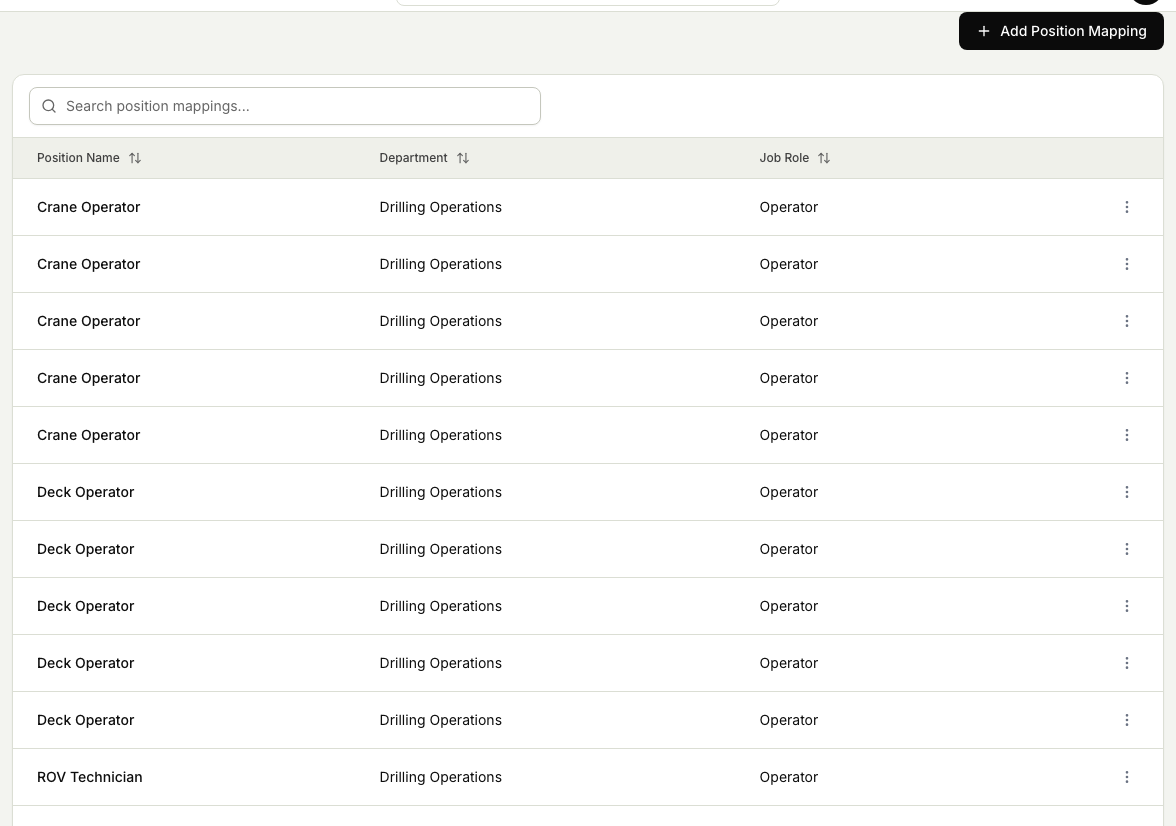
Add a mapping
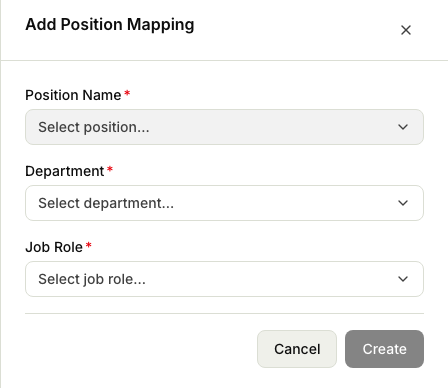
- In Settings, open Position Mappings.
- Select Add Position Mapping.
- Enter the Position Name you want to map.
- Choose the Department and the Job Role it should line up with. All three are required.
- Select Create.
From now on, people in that position are recognised as able to fill that job role when you plan.
Edit a mapping
To change a mapping later, select it in the list and pick a different position or job role. Changing a mapping updates which people are matched to the role from that point on.
What happens next
With positions mapped to job roles, the plan can match real people to the roles it asks for.