Approve or reject a timesheet
Check the hours submitted by the people you manage, then approve them for payroll or send them back for a fix.
Before you start
- You need the Approve timesheets permission. Without it you can open Timekeeper but you cannot approve or reject anyone's hours.
- Who you can approve depends on your access. A standard approver approves the people in their part of the organisation: the people who report to them, and the people who report to the approvers below them. An all-access approver can approve anyone.
- You cannot approve your own timesheet, even if you have the permission. Someone else has to sign off your hours.
Steps
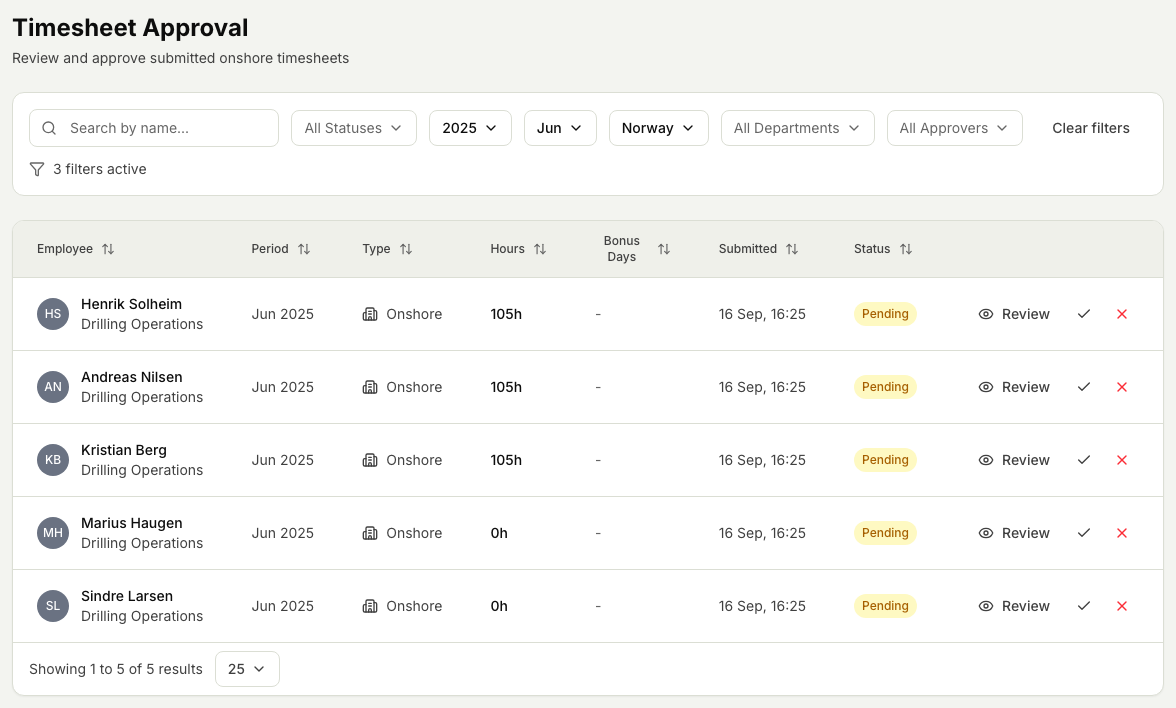
- Open the Timekeeper module, then Timesheet Approval.
- Choose the period you want to review. The list opens on last month, the one usually waiting for approval. The list shows the onshore timesheets of the people who report to you for that period, drafts included, so you can see who has not submitted yet. To see the queue of an approver below you, pick them in the approver filter. Offshore months are not approved here: they are handled under Payroll › Variable Cost Months.
- Open a person's timesheet and review the days they have registered. Check the hours, the activity on each day, and any notes they added.
- Approve the hours. You can approve the whole timesheet, or approve a single day at a time if you only want to release part of it.
- To send hours back, choose Reject and add a reason. The timesheet returns to the person so they can correct it and submit again.
- Lock a day you have finished with (right-click the day to lock it) so it cannot be changed while the rest of the period is still being reviewed.
What happens next
Approving a timesheet is the first of two stages. A manager approves the hours, and then payroll gives the final sign-off before the pay export. See How timesheet sign-off works for what happens after you approve.
Related articles
Was this article helpful?