Fill in an onshore timesheet
This tutorial walks you through an onshore timesheet from creating it to submitting it. Unlike the offshore timesheet, an onshore timesheet is not built from a rotation. You normally create it from a work schedule, review and adjust the pre-filled weekdays, allocate any overtime, and submit.
What you will end up with: a submitted onshore timesheet for the month, with every day filled in and approved.
Time: about 5 to 10 minutes.
1. Create or open your onshore timesheet
Open the Timekeeper module and select the onshore timesheet for the month you want to work on. If the month does not exist yet, select Create Timesheet, choose your work schedule, and leave Pre-fill workdays with default activity selected. Timekeeper adds your country's default activity and the schedule hours to regular weekdays, skipping weekends and public holidays.
You can clear the pre-fill option if you deliberately want to start with an empty month. In either case, the timesheet opens as a spreadsheet-style grid with a row for each day and columns for From, To, Hours, Activity, Note, and Comment, grouped by week.
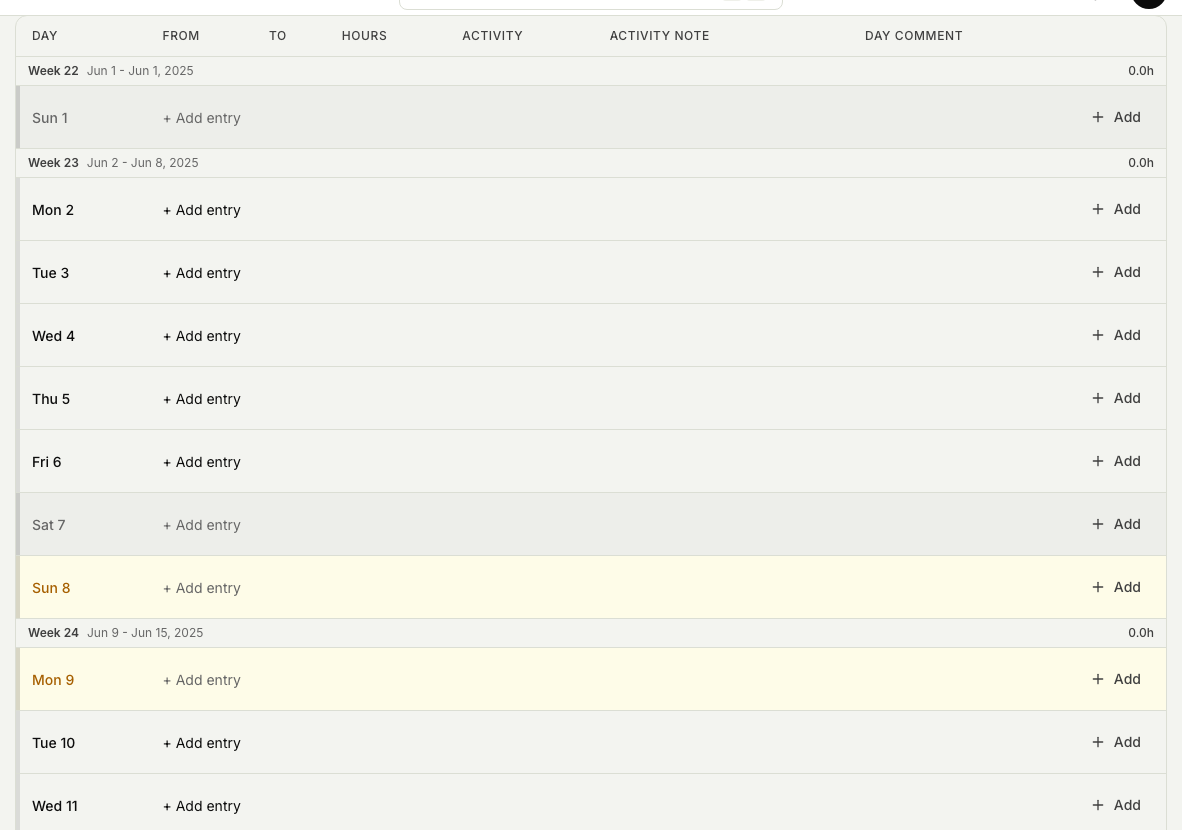
2. Review and adjust your daily hours
Check the pre-filled hours against what you actually worked. Change any day that differs, and fill in missing days so the month adds up correctly. You can add extra items on a day, such as a bonus or an allowance, in the same way as on an offshore timesheet. See Add and reject entries on a day.
3. Recalculate if you need to fill the month again
Use Recalculate if you created the month without pre-fill or need to apply a different work schedule. Choose Fill empty days only to keep existing entries, or Replace all entries to rebuild the month from the selected schedule.
4. Allocate your overtime
If you worked overtime, use the overtime allocation step to say how your overtime should be counted. This makes sure your extra hours are recorded the right way before the timesheet goes forward.
5. Submit
When the month is filled in, submit the timesheet. On an onshore timesheet, submitting auto-approves every day in one step. You do not approve day by day the way you do on an offshore timesheet.
Onshore hours are not frozen on submit. This is the main difference from an offshore timesheet: offshore is built from a rotation, approved per day, and frozen on submit; onshore uses an editable work-schedule baseline and is approved all at once. See Fill in an offshore timesheet.
After you submit, the timesheet moves on to your manager for approval. To follow what happens next, see Understand timesheet statuses.