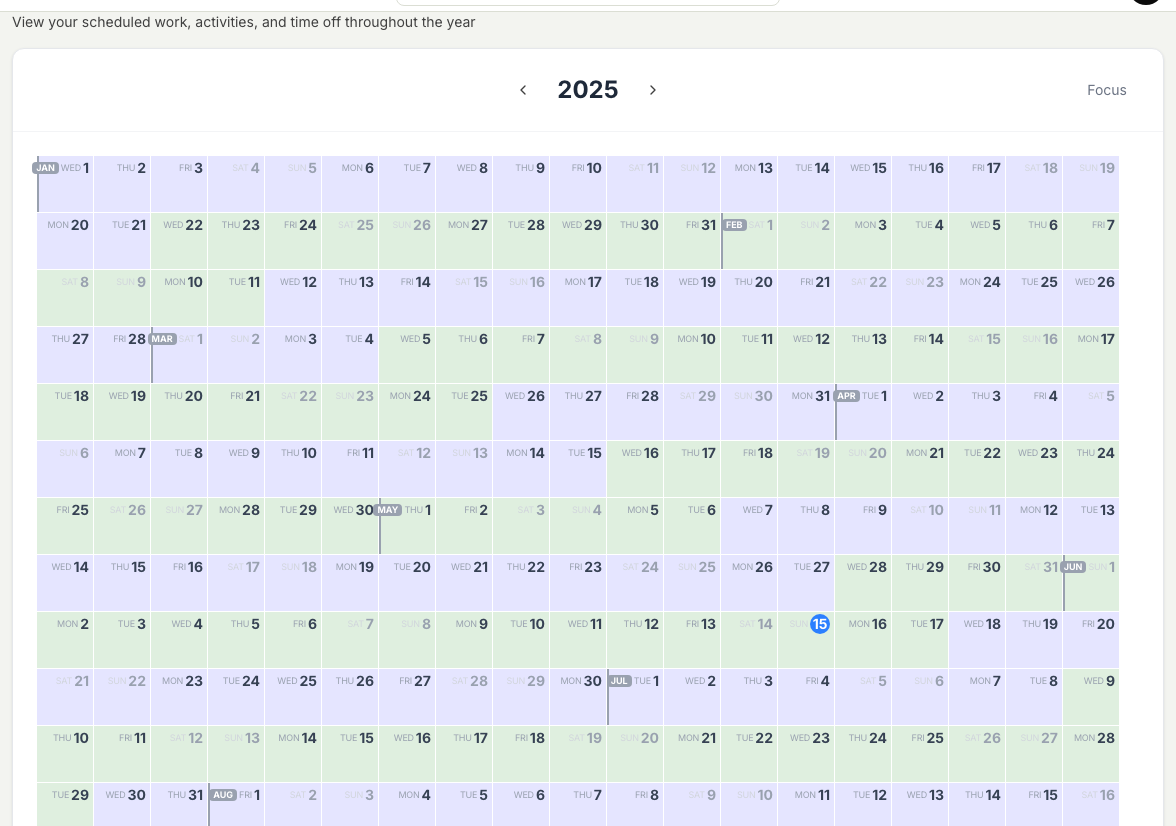
See which days you are on and off, so you know when you are scheduled offshore.
Steps
Sign in to Markular. Your workspace opens first.
Open My Schedule in the workspace menu.
Read across the calendar to see your on and off days for the period.
Change the date range if you want to look further ahead.
What the colours mean
Your schedule uses colour to show two things.
On and off days come from your rotation. On days are when you are scheduled to work; off days are your time off.Activity types mark what kind of time a day is, such as offshore work, travel, a course, standby, or leave. Each type has its own colour.
The legend at the bottom of the schedule always lists every colour on your calendar and what it means. The exact set is the one your organisation uses; the standard activities look like this:
Schedule On Off
Activity types Offshore Work time on an installation. Onshore Work time at an onshore site. Onshore Project Project work at an onshore site. Offshore Abroad Offshore work outside your home country. Standby On standby, ready to work. Waiting Waiting time that still counts as work. Cancellation A cancelled job. Travel Travelling to or from a site. Transit Time in transit between locations. Waiting/Travel Waiting time during travel. Cancellation/Travel A cancelled trip. Training A course or training time. Customer Training Training run at a customer. 1/3 Off Statutory time off in connection with offshore work (the 1:3 ratio). Plus Days Extra earned days. Vacation Planned time off. Sick Sick leave. Put On Leave Time a person is put on leave. LOA Leave of absence. Strike Industrial action. Onshore Control Room Control-room work onshore. These are the standard activity types. Your organisation may use a different set, since activity types are set up to fit the needs of each company.
Related articles